This tutorial shows how to set the JAVA_HOME environment variable on Windows 10 or 11. Setting JAVA_HOME allows tools like Maven, Gradle, and IDEs to find and use your installed Java Development Kit (JDK).
Table of Contents
- 2. Open Environment Variables
- 3. Create JAVA_HOME Variable
- 4. Add JAVA_HOME to PATH
- 5. Test JAVA_HOME and Java
- 6. Why Set JAVA_HOME?
- 7. References
Technologies Used:
- Java 21
- Windows 10/11
1. Open Advanced System Settings
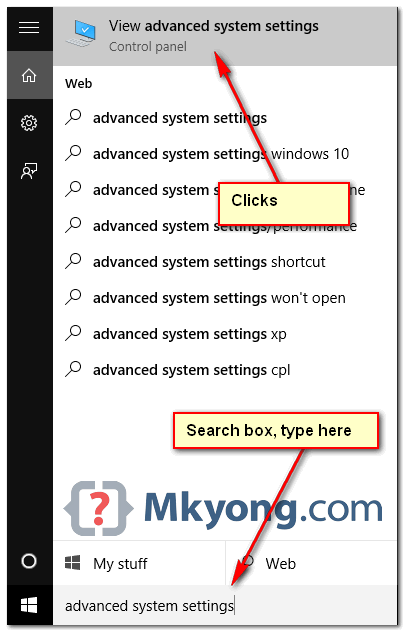
In the Windows search bar (next to the Start button), type advanced system settings, and click View advanced system settings.
2. Open Environment Variables
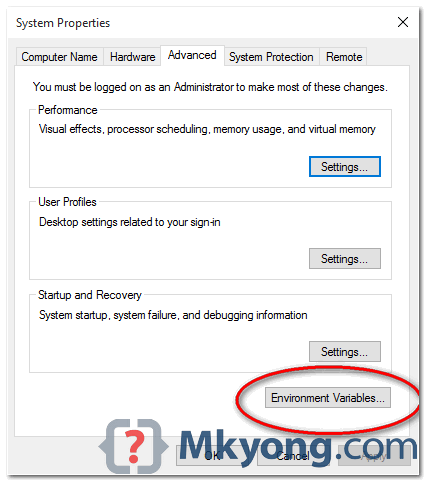
In the System Properties window:
- Go to the Advanced tab
- Click the Environment Variables… button
3. Create JAVA_HOME Variable
In the System variables section:
- Click the New… button
- Set the Variable name to
JAVA_HOME - Set the Variable value to your JDK installation path (do not include the
\binfolder)
Example:
✅ C:\Program Files\Java\jdk-21
❌ C:\Program Files\Java\jdk-21\bin

4. Add JAVA_HOME to PATH
To make Java tools accessible from the command line, we must update the PATH variable.
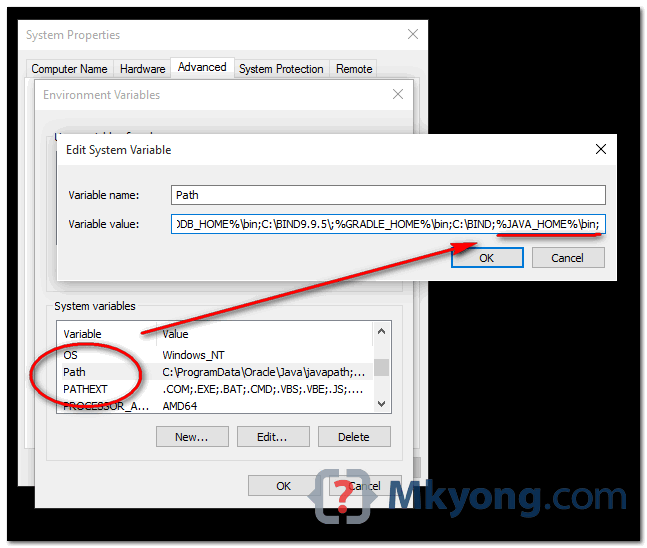
4.1 Older Windows Versions
If you see a single-line text box, append this at the end of the value:
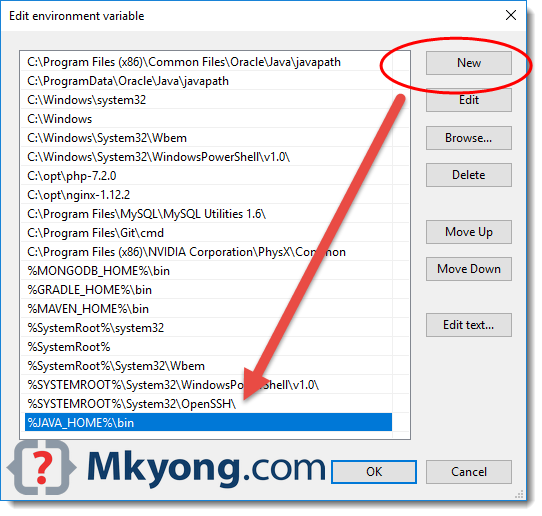
4.2 Newer Windows 10/11
If the editor shows a list, click New, and add:
5. Test JAVA_HOME and Java
Open Command Prompt and run:
java -version
javac -version
echo %JAVA_HOME%
C:\Users\mkyon>java -version
openjdk version "21.0.8" 2025-07-15 LTS
OpenJDK Runtime Environment Temurin-21.0.8+9 (build 21.0.8+9-LTS)
OpenJDK 64-Bit Server VM Temurin-21.0.8+9 (build 21.0.8+9-LTS, mixed mode, sharing)

C:\Users\mkyon>javac -version
javac 21.0.8

C:\> echo %JAVA_HOME%
C:\Program Files\Java\jdk-21
6. Why Set JAVA_HOME?
By setting JAVA_HOME:
- Java tools (like Maven, Gradle, and IDEs) can locate the JDK easily
- Java commands like
java,javac,jstack, etc., are available system-wide - It helps avoid conflicts between multiple Java versions

java xmx6g how to fix . java version “1.8.0_451”
fribbbels plz ffs …
You really helped me with this one, i couldnt find a solution but now everything works fine.
Best wishes and THANK YOU SO MUCH!
Hi @mkyong, can you please confirm below queries?
Thanks! Really appreciated!
Hello. Thank you very much !
It’s worked perfely! Thanks for your user friendly documentation, which is very helpful for beginers like me. Appreciate your efforts.
good
tank you so much
Hi Mkyong! Thank you very much, Just folowed each step and it’s worked like a charm.
Thank You! It worked for me
THANK YOU MISTER
Thank you sir.
Thank you for helping me out.
How should I install Tomcat under powershell on Windows 10? It reports Invalid path always
Very good tutorial, than you so much!
C:\Users\HP>javac -version
‘javac’ is not recognized as an internal or external command,
operable program or batch file.
do you have like button in your post? I feel like you deserved it!
Thank you, I have no how to use allure without JAVA_HOME.
Hi
Can i use any other name instead of java_home
Yes you can. I tried it works
In setting the path variable , use the path actul where your JDK (bin ) is stored
Thank you very much for the explanation.
thank you
java _version
Error: Could not find or load main class _version
Ok… sorry… it’s ” dash – ” NOT “underscore _ ” Never mind.
Thanks for sharing
on my windows10 pro , I had to add the path into “path” and include the “\bin” (jdk 14.0.2)
the JAVA_HOME didn’t work
anyway thank you for this page. it still helped
Hello all,
Unlike Step 5, I am getting below format for javac,
java -version > java version “1.8.0_251”
Java(TM) SE Runtime Environment (build 1.8.0_251-b08)
Java HotSpot(TM) 64-Bit Server VM (build 25.251-b08, mixed mode)
javac -version > javac 14.0.1
Is this correct format ?
Correct, you are using JRE 1.8, and JDK 14
command is correct. Your javac compiler is of 14.0.1 version ideally it should be of 1.8.0_251
Expected cmd output should be as below
javac 1.8.0_251
Note: You may downloaded & installed JDK 14.0.1 version uninstall it from Program files. This solution may work
Hi Mkyong,
I downloaded java jdk, but when i open the containing folder(C:\Program Files\Java), there is only jdk 14.0.1.But there is no jre file.Please help
i got it sir , thank you ……
thank ‘you sir
good explain thanks !!
Thank you.
The year is 2020, and I use this again
I have done the way you stated. But still “The system cannot find the path specified.”
Is we dont need to include jre in java_home path.
Mucha ayuda muchas gracias
mkyong you are the best!!!
Your tutorials help me a lot.
Thank you very much !!
Thank you for this tutorial!
very nice explained well done…!
Hi Mykong.
when i type ‘echo %JAVA_HOME%’ I only get ‘ %JAVA_HOME%’ as the response
guys guys guys
add a semicolon(;) after bin in that path … it will work
Hi Mykong.
when i type ‘echo %JAVA_HOME%’ I only get ‘ %JAVA_HOME%’ as the response
I have the same problem
instead of adding %JAVA_HOME%\bin to the system variable, I put the whole path like C:\Program Files\Java\jdk1.8.0_201\bin and it worked
Seems in some cases that placeholder method does not work out… same issue on my engine.
This one worked for me thanks
both methods do not seem to work for me. The java -version command works though.
I had the same problem. Try to write command in “Command Prompt” insted of Powershell
Used Command prompt instead of power shell for “echo %JAVA_HOME%” to work
If you are using Windows Power Shell and “java -version” works correctly but “echo %JAVA_HOME%” does not try this:
1. run “echo %JAVA_HOME%” in command prompt
or
2. run $Env:JAVA_HOME in Windows Power Shell
Hope this helps!
hi Mkyong
C:\Users\Vinh>javac -version
‘javac’ is not recognized as an internal or external command,
operable program or batch file.
i have a prolem with this, can you support me? sorry I dont speak English very well
I’ve tried 8 different guides and uninstalling / installing Java countless times, rebooting, adding and removing environment variables etc and it somehow didn’t work, but your guide did the trick. Thanks a lot! 🙂
Thank you
hice esto me funcionan los dos comandos, pero el java -version es:
“”java version “1.8.0_201″””
pero la version que me aparece en el javac -version es:
“”C:\Program Files\Java\jdk1.8.0_191″”
es normal?
Thanks, it worked in one go
thanks
Step 4 path is not exist in my comupter
javac -version not worked for me windows 10 latest i m using
Thank’s for COMPLETE tut. on java & maven path adding , works perfectly.
Thank you !
Thank you ,
for me it works
Hi, you say do not include “\bin” to path, but without bin directory it not working in my case (i use Windows 10)
Thanks Dear, It worked for me.
I love all your stuff cause it is clear and well explained. thank you
Thanks a lot!!!!!!!!!!!!!!!!!
Hi i deleted “path” in system variable how can i regain it……plzz…..help me sooon…it become i week still i cannot solve..feeleing frustrated….
Do y find solution because I suffer from the same
hi
I tried to update my path to in the system variable to add the (%Java_Home%/bin;) but the path is not editable. and also there`s nothing on my system that says “Mkyong” i don’t know if i am doing something wrong . some please help me
exactly the one I wanted, thankyou
Thanks that helped me a lot on Windows 10!
thanks fo you post
Thank you dear
After opening my eclipse its showing “failed to load the JNI shared library” and a path is given.. Can u help me wht to do
i did all of that but when i wana to use in the eclipse it doesnt exist.why?
thanks alot…you had the best explanaion..thanx
I am using java 1.7. How to set java 7 path in windows 10 ?
there is nothing in my system variables as path to edit. what should I do? javac command is working in cmd but when I try to compile my program it says not found.
thank you for your good post
Windows 10 Path-section fix.
If you click edit on the paths section and it has 4 of them or more, just ADD a new path and make it the ‘%JAVA_HOME%bin’
This is what worked for me, there was nothing for me to add it to the end to that was similar to the video, but I made it it’s own option and it worked.
Thanks buddy.. This worked for me..
how to make it ‘%JAVA_HOME%bin’. I mean I can add a new path and give the path of my java Bin there. what else do I need to do?
Yes, in latest Windows, the dialog box is changed. Thanks for your help.
Article is updated to include this situation, thanks.
I have followed all the steps.Its working correctly still theres an error launching android studio .says no jvm found
Hii,
Mkyong i have windows 10 .i have installed jdk1.8.0_77 and also include jre1.8.0_77.first i setup envirment as your avobe instruction.Then i go to cmd promt type java -version run successfully but when i type javac -version error is occured i.e ‘javac’ is not recognized as an internal or external command,
operable program or batch file.
this is also my question, is there any explanations now as to why javac -version didn’t work?
when you write paths do it without any white spaces.
i now fixed it by adding a semicolon before appending it to the path.
Read Step 4, you need to add %JAVA_HOME%bin to the PATH.
try java -version instead. That’ll work after you’ve set the path.
I had the same problem, “javac -version” was not being recognised.
So I googled and came across a “stackoverflow.com” article. It mentioned about using location the JDK bin folder.
So I first added “%JAVA_HOME%\bin”
Then I added my address for JDK bin folder.
And that seem to fix my “javac -version” problem.
I don’t know if this is the best “solution”, I’m a noob, just learning.
Here’s a link to the article:
https://stackoverflow.com/questions/44344519/getting-javac-is-not-recognised-as-internal-or-external-command-operable-progr
after completing the system variable settings you better close the command prompt and open again and then you try these commands. For me it worked like that only
This.
thanks buddy
that works))) thx man!!!
This works. Thanks.
Okay the problem here is that adding %JAVA_HOME%\bin to the path file DOES NOT WORK. Instead, go to file explorer and location the bin folder inside your jdk directory, copy the folder path and add it to the path file. This should resolve javac. In the future, authors should understand what does and doesn’t work before writing a tutorial.
I think you forgot to set JAVA_HOME variable.
javac -version doesn’t work. I made HOME_JAVA and edited the path. My path when editing is not in the same interface as yours. Instead of one long it is divided in multiple lines and put the %JAVA_HOME%bin as the last line. But still doesn’t work.
i think you have only installed jre file.you should have to install jdk file too..
Article is updated, just clicks on the New button to add %JAVA_HOME%\bin
Download JDK and set PATH=”C:\Program Files\Java\jdk1.7.0_09\bin” on command prompt.
in window 10 there is no java_home in advance setting, but created new. still i didn’t get path for java_home, what should i do?
thanks it Works!~
Thank you very much. Can I share it on my blog?
thanks its help me lot
Hi Everyone and Mkyong, Java SE 8 jdk8u_66 I want to set up to Windows 10, I can’t make the JVM, set beyond the flesh I can’t do, please help you be?
Sorry, what is your problem?
What if java isn’t listed there, yet you have installed java on Windows 10?
You have to install or download Java manully it from Oracle – http://www.oracle.com/technetwork/java/javase/downloads/jdk8-downloads-2133151.html
thanks a lot for this info you save me …
Note : it working fine after restart my pc .
Restart your terminal.
I needed to restart also, should include this in the directions above?
10x, keep up the great work!
In my laptop having both JDK as well as JRE, I can able to check installation of java via CMD. I can’t change the Path address in System Environment.
what can i do?
After windows 10 update i can use netbeans, i’m trying to install that but it produce NULLNULL error while installing.
anyone help me. I’m tried lot. i need help
Try log in as administrator.
Windows+pause key works in windows 10? because that can also help in opening advance system settings dialog…
Thanks for your shortcut, yes it works. Windows key + Pause Key will prompts the “advance system settings”
Hi am getting error but in command prompt java is working fine . but having an issue with maven.. pls help me am using java1.8 and windows10 os
THANK YOU FOR SHORTCUT BROTHER—-