I had encountered following error message while starting my Tomcat server.
[2009-01-16 11:22:19] [1343 prunsrv.c] [debug] Procrun log initialized
[2009-01-16 11:22:19] [info] Procrun (2.0.4.0) started
[2009-01-16 11:22:19] [info] Running Service...
[2009-01-16 11:22:19] [1166 prunsrv.c] [debug] Inside ServiceMain...
[2009-01-16 11:22:19] [info] Starting service...
... [error] The specified module could not be found.
[2009-01-16 11:22:19] [994  prunsrv.c] [error] Failed creating java
C:\Program Files\Java\jre1.6.0_07\bin\client\jvm.dll
[2009-01-16 11:22:19] [1269 prunsrv.c] [error] ServiceStart returned 1
[2009-01-16 11:22:19] [info] Run service finished.
[2009-01-16 11:22:19] [info] Procrun finished.
[2009-01-16 11:24:41] [1343 prunsrv.c] [debug] Procrun log initialized
[2009-01-16 11:24:41] [info] Procrun (2.0.4.0) started
[2009-01-16 11:24:41] [info] Debugging Service...
[2009-01-16 11:24:41] [1166 prunsrv.c] [debug] Inside ServiceMain...
[2009-01-16 11:24:41] [info] Starting service...
...[174  javajni.c] [error] The specified module could not be found.
After googling, this is usually happen because of missing msvcr71.dll file. However tomcat doesn’t use msvcr71.dll directly, it’s used by the Java Virtual Machine (JVM).
Solution
- Copy msvcr71.dll from java’s bin directory to tomcat’s bin folder.
- Add java’s bin directory to windows environment variable.
- Copy msvcr71.dll from java’s bin directory to windows\system32 folder.
- Make sure your tomcat’s pointing to correct jvm.dll folder.
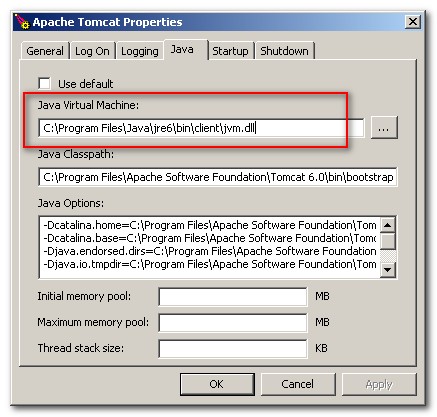
Solution 4 is work for me, my tomcat pointing to C:\Program Files\Java\jre1.6.0_07\bin\client\jvm.dll, but my java’s runtime folder is located at C:\Program Files\Java\jre\bin\client\jvm.dll..what a joke.
Updated, 19-Sept-2009
Here is a similar error, it happened recently
... [174  javajni.c] [error] %1 is not a valid Win32 application.
... [994  prunsrv.c] [error] Failed creating java
C:\Program Files\Java\jre6\bin\server\jvm.dll
... [1269 prunsrv.c] [error] ServiceStart returned 1
It’s seem server\jvm.dll is not working property, just change it to client\jvm.dll will do.
From
C:\Program Files\Java\jre6\bin\server\jvm.dll
To
C:\Program Files\Java\jre6\bin\client\jvm.dll

Hi,
It could be also msvcr100.dll depending of the version of java.
excelentª!!!
Thank you very much. Adjusting the JVM setting in TomcatW was able to fix my problem. My website now runs as a service on a windows machine with no problems!
Thank you very much. Adjusting the JVM setting in TomcatW was able to fix my problem. My website now runs as a service on a windows machine with no problems!
Thank you very much. Adjusting the JVM setting in TomcatW was able to fix my problem. My website now runs as a service on a windows machine with no problems!
If I uninstall and reinstall the tomcat service. Will tomcat work?
Nice solution worked for me… but I copied msvcr100.dll from java’s bin directory to tomcat’s bin folder.
Thank you 🙂
thank you
Thanks a lot it worked for me for server error.In C:\Program Files\Java\jre6\bin\client\jvm.dll was there i jus renamed client folder with server and it worked.
thanks a lot it worked for me…
Hi Yong,
I followed all the 4 steps, but still I am getting this error:
[2013-05-28 18:06:49] [info] Commons Daemon procrun (1.0.10.0 32-bit) started
[2013-05-28 18:06:49] [info] Service JettyService name
[2013-05-28 18:06:49] [info] Service ‘JettyService’ installed
[2013-05-28 18:06:49] [info] Commons Daemon procrun finished
[2013-05-28 18:07:02] [info] Commons Daemon procrun (1.0.10.0 32-bit) started
[2013-05-28 18:07:02] [info] Running ‘JettyService’ Service…
[2013-05-28 18:07:02] [info] Starting service…
[2013-05-28 18:07:02] [error] Failed to start Java
[2013-05-28 18:07:02] [error] ServiceStart returned 4
[2013-05-28 18:07:02] [info] Run service finished.
[2013-05-28 18:07:02] [info] Commons Daemon procrun finished
Any Idea?
Thanks
Dhana
Hi yong,
I solved my issue.
I have followed all the 4 solution and restarted my windows system. Then I started my JettyService, it works as expected.
Thanks a lot for all the solution..
Thanks
Dhana
Thank you very much. After googling lot i ended up in this page. Solution 4 works perfectly fine for me. Thank you for the solution
Would it work if i am trying to create jar as a service too? I dont have a bin folder in my jar file. Is it enough if i copy it from java bin to sys32 folder?
Thanks a lot man!!!
Thanks….. copying msvcr100.dll from java’s bin to tomcat’s bin solved my problem aswell…..
Thanks man!
Right on! Thanks for the great post.
I had the same issue with java7. Copying msvcr100.dll from java’s bin to tomcat’s bin solve the problem.
Thanks again.
We had a similar error
CreateJavaVM Failed
[2012-12-17 12:54:56] [error] %1 is not a valid Win32 application.
[2012-12-17 12:54:56] [error] Failed to start Java
[2012-12-17 12:54:56] [error] ServiceStart returned 4
[2012-12-17 12:56:58] [error] CreateJavaVM Failed
[2012-12-17 12:56:58] [error] %1 is not a valid Win32 application.
[2012-12-17 12:56:58] [error] Failed to start Java
[2012-12-17 12:56:58] [error] ServiceStart returned 4
We fixed it by upgrading jre to the lates version of 1.6, our process required at least 4 gig ram compared to the fact that we had only 3 g
I just places the distributed files folder apache-tomcat-7.0.22 in c drive and i set the path too. when i am starting the startup i am getting this error!
plz help me sir!
java.util.logging.ErrorManager: 4 java.io.FileNotFoundException: C:\Program Files (x86)\apache-tomcat-7.0.22\logs\ catalina.2012-09-06.log (Access is denied) at java.io.FileOutputStream.openAppend(Native Method) at java.io.FileOutputStream.(FileOutputStream.java:192) at org.apache.juli.FileHandler.openWriter(FileHandler.java:386) SEVERE: Failed to open access log file [C:\Program Files (x86)\apache-tomcat-7.0 .22\logs\localhost_access_log.2012-09-06.txt] java.io.FileNotFoundException: C:\Program Files (x86)\apache-tomcat-7.0.22\logs\ localhost_access_log.2012-09-06.txt (Access is denied) SEVERE: Unable to create directory for deployment: C:\Program Files (x86)\apache -tomcat-7.0.22\conf\Catalina\localhost WARNING: Failed to create work directory [C:\Program Files (x86)\apache-tomcat-7 .0.22\work\Catalina\localhost\docs] for context [/docs] WARNING: Failed to create work directory [C:\Program Files (x86)\apache-tomcat-7 .0.22\work\Catalina\localhost\examples] for context [/examples] WARNING: Failed to create work directory [C:\Program Files (x86)\apache-tomcat-7 .0.22\work\Catalina\localhost\host-manager] for context [/host-manager]looks like permission issues creating several different files (Access is denied). Did you install java or “copy” over? Do you have admin rights? Ask your server team what group policies you’re associated with?
Please make sure you or owner of Tomcat folder has permission to create folder.
Another very happy reader here. Thanks so much! 😀
I am getting an error message:
C:\PROGRA – 1jre6\bin\ssragent.exe
I cannot download any programs after I click off the message. Can anyone help?
Thanks.
Sanmo
In my research with this same issue, I stumbled on this thread and made the changes through the tomcat6WFw gui and it solved my problem of the service not starting.
Now I was wondering if anybody can help me make this change via batch file. I need to install webfocus dev studio 773 on several machines but tomcat always wants to use the default path to the jvm of c:\program files\jave\jre6\blah blah blah but I need the path to be set as c:\program files\java\jdk1.6.0_17\jre\bin\server\jvm.dll. I would really appreciate any help in scripting this command.
as a side note- I have never posted to a forum before and apologize if I break any protocols…
Thanks in advance!
Question… Windows 2008 or W 2003? We found “client” directory missing under JRE/BIN which caused JSCOM to not start. Had to copy directory in from another server. Bizarre.
Seriously dude, a week ago I’d never been to your blog and now I’ve found the solution to my problems here TWICE.
At the risk of sounding lame and stereotypical, you da man!
.. two beer owed 🙂
Try restarting the computer before making any changes and see if it works.
Based on a True Story!
I got similar error:
[994 prunsrv.c] [error] Failed creating java C:\Program Files\Java\jre7\bin\server\jvm.d
ll
[1269 prunsrv.c] [error] ServiceStart returned 1
I am running 64 bit java 1.7.0 with 64 bit tomcat. The file msvcr71.dll no longer exist in new version of java.
Solution for me is to copy the new version: msvcr100.dll from C:\Program Files\Java\jre7\bin to tomcat’s bin folder and windows\system32 folder.
Steps 1-4 works for me. Thanks a lot
****It’s seem server\jvm.dll is not working property, just change it to client\jvm.dll will do.***
Thanks for this info, it worked for me.
Hi,
I am running Windows Server 2008, Enterprise and TomCat 5.5 and Have not been able to get it running even with all the great tips I have seen here.
Can anyone offer any more help?
Thanks in advance
IT WORKED!
MANY THANX!
It’s obvious but might trip someone up: you need to use 64 bit java with 64 bit Tomcat, mixing them can give this error (guess how I know). 😉
Hi guys… I had the same error, but on my site i have jdk build 1.6.0_22-b04 and Tomcat 6.029, both installed onto W2003_64. I solved this problem just point to jvm.dll(C:\Java\jre6\bin\server). I have the #@&*( msvcr711.dll) into 3 differents places…(I have Visual Studio…).
Everything works…. aff!!!
thanks a lot. its really helpful to me.
It is sweet that you blogged about this. I found you on bing and I had been searching for info about this. Nice website, thank you for the info. I will come back to check for new entries
i successfully install tomcat but at the time i m running it from bin/tomcat5 it cant start n i try it by installing tomcat on diffrent ports but it still not work what can i do???
…bin/tomcat5 it cant start….
Bro, what’s your error code or message?
… n i try it by installing tomcat on different ports but it still not work…
Same here
GGGGGGGGGRRRRRRRREEEEEEAAAAAATTTTTTTTTTTTTTTTTTT !!!!!!
I didnt know how to fix it.
Thanks a lot. I offer my soul to you man!!!
You are my god.
My CHAMAN!!!
Really thanks.
Mary, point it at the JRE directory not the bin.
i try to install the tomcat but each time i declare the path it will display “no java virtual machine found in the folder” i don’t understand that at all.
Thanks for the advice. I renamed bin/server to bin/client in my Java 64-nit installation and all worked well. How strange.
I’ve followed all four steps in the solution above and I am still getting the problem. I am using jre1.6.0_18 in “Program Files (x86)”. I installed a 64-bit version of Java in “Program Files” but its bin directory does not contain a client subdirectory. Should I follow the steps above for the server directory, instead? I am on Windows 7 Home Premium. Thanks.
Try install the JDK
thanks alot, it works
It works thanks, copy the dll to the tomcat folder
In my case the problem was that if you install Tomcat under Windows 7 x64 you also need the Windows x64 version of Java.
Gracias, en mi caso era esta misma situación.
it’s work, thank you 😀
I am trying to install Tomcat on a Windows Server 2003 SP2 machine and none of the solutions above are working for me. I have copied the msvcr71.dll file to the appropriate paths, change to the client jvm, rebooted the system.
System variables are entered too.
Nothing works I still receive the ‘Failed creating java’ error. Can anyone help?
Hi,
It works
It works!
Thank you.
Thank you, thank you, thank you. I’m a DBA thrown into the world of configuring and setting up Java websites or in this case, upgrading one. This solved my problems!
Good to know this help you, btw is this DBA responsibility? 🙂
my soltuion. after run ${tomcat_home}\bin : service.bat , the question fixed .
Thanks for your tip, nice try
Thank you! Thank you very much!
Good to know this is helpful for you guys 🙂
Thank you mk! The original post and comments were VERY helpful! ! Solution #2 solved it.
I just forgot to add java bin’s directory path to Windows environment variable. Ha.
Thanks a lot for sharing this great helpful tip!
Thanks to the information on this site I’ve diagnosed and fixed several issues – much appreciated. Using Tomcat5, From what I understand:
Java bit JVM (requirements)
1.6 32 server (does not work)
1.6 32 client (requires msvcr71.dll in PATH)
1.5 64 server (requires 64-bit tomcatX.exe)
1.5 64 client (n/a)
1.5 32 server (ok)
1.5 32 client (ok)
happy hunting
thanks for sharing your experience 🙂
Hello,
Onload of page my antivirus put alert, check pls.
Thank you
Is this page you talk about? May i know which antivirus you are using now?
Hi,
Thanks for the solution.
Solution 3 worked for me.
Good job… thanks for this info post.
Thanks All,
The original post and comments were VERY helpful!
my case was msvcr71.dll. Copying it to tomcat bin made it work.
Interesting,
it worked perfectly
Keep up the good work
Thanks all – the original post and comments were VERY helpful! Solution #1 solved it. in my case Java was installed on a C: drive and Tomcat on a D: drive – not sure if it contributed the problem, but alls well now.
Thanks,
my case was msvcr71.dll. Copying it to tomcat bin made it work.
i came across your post when googling error messages. My problem ended up being not the funky jvm location, but that jvm and/or other dlls require Win32:
[2009-06-24 17:02:18] [174  javajni.c] [error] %1 is not a valid Win32 application.

[2009-06-24 17:02:18] [994  prunsrv.c] [error] Failed creating java C:\jdk1.6.0_14\jre\bin\server\jvm.dll
After stepping back from the 64bit jdk and using the 32bit, things started up smoothly
hi jdc, thanks for sharing this information
Hi !! mkyong thank for this solution it very useful for me thanks again
Thanks for your post, it really help for me.. 🙂
Keep up your work sir..
Warm Regards,
Leonardo Carreira ?
thanks for your encouraging message
Work for me
I’m still stuck…tried the first 3 solutions w/no luck. I’m on Win XP SP3 – when I get properties on Tomcat6.exe I get a standard Windows property dialog – how do you get the richer properties dialog shown here – where I can edit the JVM path directly? I’ve tried reinstalling and selecting the JVM path as C:\Program Files\Java\jre1.6.0_11\bin\client\jvm.dll directly, but the installer won’t accept the path…
Thanks
The richer properties dialog is from “tomcat6w.exe” , which located in %TOMCAT%\bin\ folder.
hj.thanks much
its useful for me.
later.3 hour try install it.i catch post of you.help me install successfull
Hi !! mkyong thank for this solution it very useful for me thanks again ^^
welcome, upgraded JRE always cause the file path missing problem.
excellent that worked!!!
although copying it in sys32 is not required :).
Thanks.