In PrimeFaces, your can use <p:watermark> to display watermark effect on input field. This watermark component is using HTML5 placeholder attribute in supported browsers like Safari, Chrome and Firefox, and fall back to JavaScript solution for non-support browser like IE.
  <p:inputText id="username" required="true"
	label="username" size="40" value="#{userBean.username}" />
  <p:watermark for="username" value="Username *" />
In this tutorial, we will show you how to use PrimeFaces watermark component to create a watermark effect, and also style the text color.
Tools used :
- PrimeFaces 3.3
- JSF 2.2.11
- Eclipse 4.2
- Maven 3
- Tomcat 7
1. Watermark Example
Add text “username *” on top of the input text (watermark effect).
<!DOCTYPE html>
<html xmlns="http://www.w3.org/1999/xhtml"
	xmlns:h="http://java.sun.com/jsf/html"
	xmlns:f="http://java.sun.com/jsf/core"
	xmlns:ui="http://java.sun.com/jsf/facelets"
	xmlns:p="http://primefaces.org/ui">

<h:head>

</h:head>
<h:body>
	<f:facet name="last">
		<h:outputStylesheet library="mytheme" name="css/style.css" />
	</f:facet>

	<h1>PrimeFaces watermark example</h1>

	<div style="width: 500px">
	 <h:form>
	    <p:inputText id="username" required="true" label="username" size="40"
		requiredMessage="Please enter your username."
		value="#{userBean.username}">
			<f:validateLength minimum="3" maximum="20" />
	    </p:inputText>
	    <p:watermark for="username" value="Username *" />

	    <p:message for="username" />

	    <p:commandButton value="test" style="margin:20px"
		action="#{userBean.register}" ajax="false" />

	  </h:form>
	</div>

</h:body>
</html>
package com.mkyong;

import javax.faces.bean.ManagedBean;
import javax.faces.bean.SessionScoped;

@ManagedBean(name = "userBean")
@SessionScoped
public class UserBean {

	String username;

	public String getUsername() {
		return username;
	}

	public void setUsername(String username) {
		this.username = username;
	}

	public String register(){
		return "thanks";
	}

}
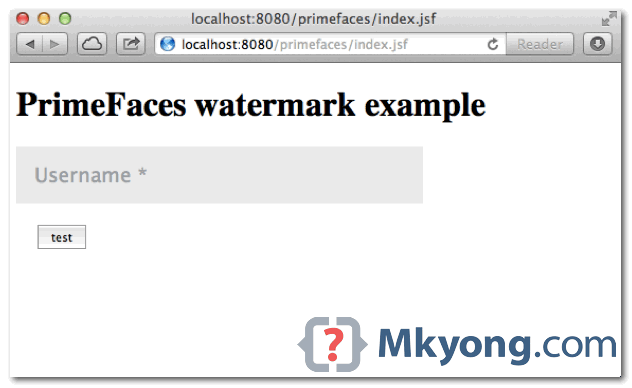
2. Demo
http://localhost:8080/primefaces/index.jsf
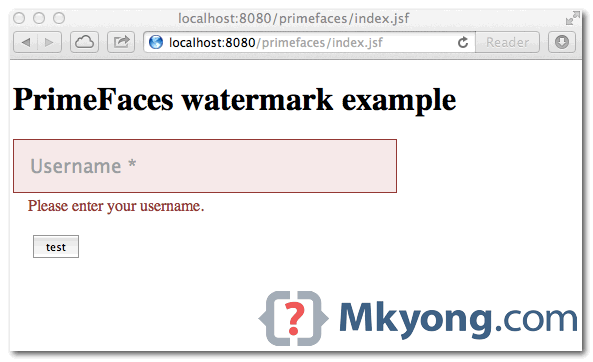
Validation failed.
3. Change text color
A common request is change the default gray color text. To style it, you’ll need vendor prefix placeholder CSS properties :
/** chorme and safari **/
::-webkit-input-placeholder {
	color: blue !important;
	font-weight: normal !important;
}

/** firefox **/
:-moz-placeholder {
	color: blue !important;
	font-weight: normal !important;
}

/** IE **/
.ui-watermark {
	color: blue !important;
	font-weight: normal !important;
}
For IE, not supports for HTML5 placeholder, PrimeFaces will add an extra .ui-watermark.
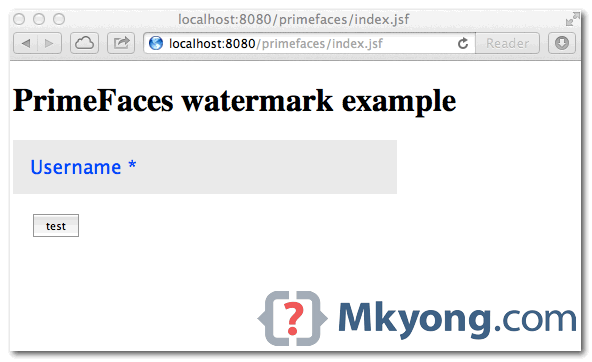
See demo, the watermark text color is changed to “blue”.
P.S Tested On IE9, Chrome and Safari.

Hi,
Thanks for the tutorial. I’m a beginner using Primefaces and last days I have been doing some exercises with the framework.
If you don’t mind I would like to ask you how can I implement a image inside a inputText using css. I tried with background-image in a custom css by overrinding some attributes and using styleClass=”myclass”.
<p:inputText value='' id='username' styleClass='username'/>

.username {
	background-image: url("search.gif") !important;
	background-repeat: no-repeat !important;
	background-position: left 1px !important;
	padding-left: 17px !important;
}
For some reason the image was not being displayed using styleClass attribute in the inputText component but if I use the style attribute then the image is displayed correctly in the text field.
Any suggestion for my issue?
thanks in advance.
THanks .
I need source Code for uploading file via Primefaces.
Code which is in primefaces.org is not enough