Custom tags in JSF 2.0

In JSF 2.0, you are allow to create your custom tag to render a pre-defined content. A custom tag is look like a normal JSF tag, and uses “ui:composition” to insert content into the page.
Here’s the summary steps to create a custom tag in JSF 2.0.
- Uses :ui:compisition” tag to create a predefined content in an XHTML page.
- Declares the custom tag in a tag library descriptor.
- Register the tag library descriptor in the web.xml.
Custom Tag Example
A guide to create a custom tag, which will insert two pre-defined submit and reset buttons into a page.
1. Custom Tag
Create a normal XHTML file to implement the custom tag, which uses “ui:composition” tag to group submit and reset button together.
WEB-INF/tags/com/mkyong/button.xhtml
<?xml version="1.0" encoding="UTF-8"?>
<!DOCTYPE html PUBLIC "-//W3C//DTD XHTML 1.0 Transitional//EN"
"http://www.w3.org/TR/xhtml1/DTD/xhtml1-transitional.dtd">
<html xmlns="http://www.w3.org/1999/xhtml"
      xmlns:h="http://java.sun.com/jsf/html"
      xmlns:ui="http://java.sun.com/jsf/facelets"
      >
    <h:body>
       <ui:composition>

		<h:commandButton type="submit" value="#{buttonSubmitLabel}" />
		<h:commandButton type="reset" value="#{buttonResetLabel}" />

       </ui:composition>
    </h:body>
</html>
2. Tag Library
Define custom tag detail in a tag library descriptor file.
- namespace – Namespace of this tag library, create an unique name to avoid conflict.
- tag-name – Custom tag name.
- source – Implementation of the custom tag.
WEB-INF\mkyong.taglib.xml
<?xml version="1.0"?>
<!DOCTYPE facelet-taglib PUBLIC
  "-//Sun Microsystems, Inc.//DTD Facelet Taglib 1.0//EN"
  "http://java.sun.com/dtd/facelet-taglib_1_0.dtd">
<facelet-taglib>
    <namespace>https://mkyong.com/facelets</namespace>
    <tag>
	<tag-name>button</tag-name>
	<source>tags/com/mkyong/button.xhtml</source>
    </tag>
</facelet-taglib>
3. Register in web.xml
Register the tag library in web.xml file.
 <!-- Load custom tag into JSF web application -->
 <context-param>
    <param-name>facelets.LIBRARIES</param-name>
    <param-value>/WEB-INF/mkyong.taglib.xml</param-value>
 </context-param>
4. Use Custom Tag
To use the custom tag, you have to declare its namespace on top, and use it like a normal JSF tag.
<?xml version="1.0" encoding="UTF-8"?>
<!DOCTYPE html PUBLIC "-//W3C//DTD XHTML 1.0 Transitional//EN"
"http://www.w3.org/TR/xhtml1/DTD/xhtml1-transitional.dtd">
<html xmlns="http://www.w3.org/1999/xhtml"
      xmlns:h="http://java.sun.com/jsf/html"
      xmlns:ui="http://java.sun.com/jsf/facelets"
      xmlns:mkyong="https://mkyong.com/facelets"
      >
    <h:body>
    	<h1>Custome Tags in JSF 2.0</h1>

    	<mkyong:button
    		buttonSubmitLabel="Submit"
    		buttonResetLabel="Reset" />

    </h:body>
</html>
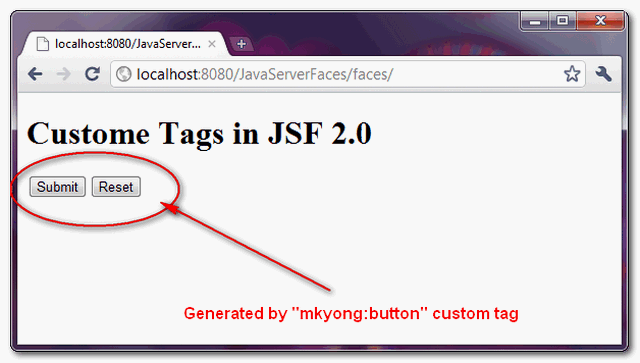
The “mkyong:button” custom tag will render one submit button and one reset button.
Download Source Code
About Author

Hi, is it possible mapping the body / head tags?
For switch on compile time jsf 1.x jsf 2.x, I’m looking for a solution for mapping head/body & h:head/h:body in the same my.xhtml
I was thinking if possible create new namespace for mapping body/head with: “http://www.w3.org/1999/xhtml” or “http://java.sun.com/jsf/html” and change the refer namespace file, before compile: xmlns:h=”http://java.sun.com/jsf/html” “http://www.w3.org/1999/xhtml”.
thank you
Salvatore
Is’nt facelets.LIBRARIES Facelets 1.x specific and deprecated in JSF 2.x, and should’nt we use instead javax.faces.FACELETS_LIBRARIES ?
Hi Great Article ,
I need know How to apply action attribute??
How I can Handle Internal Contents? I am going to write a tag like dataTable and I need to get internal contents like this:
Thanx
How I can Handle Internal Contents? I am going to write a tag like dataTable and I need to get internal contents like this:
COL1Row INFO
COL2Row INFO2
Thanx
Thanks for the article.
I have a question about custom tags. I have a page that uses 30 custom tags on pure jsp throught struts, with old mechanism. On tomcat is knowed a bug related to memory leak when custom tags are implemented. My question is, why on jsf is efficient?
Thank u very much 🙂
Good sample, really helped me.
But I still have one question: what about the action?
I don’t want to use a fixed action, like:
I want to define the action in each page I use the component (item 4). How I do that?
I meant… action=”alwaysTheSameMB.alwaysTheSameMethod” ( I know, that’s not the correct syntax, just for illustration)
I meant… action=”#{alwaysTheSameMB.alwaysTheSameMethod”}
Can you extend the example so that it renders inner child components.
anything
Thanks
Please update the tutorial to use JSF/Facelets 2.0 taglib declaration and context parameter name. You’re using Facelets 1.0 style.
Mind to elaborate more about your suggestion? Appreciated your help.
Whoever posted this is a complete muppet!
This is not a custom component, this is an example for composition.
To develop a custom component you have to create custom component class with decode/encode/savestate/restorestate, customer renderer, custom tag, coverters, validator, event, eventlistener, register everything, use the component in the using page.
In other words, author, you FAIL…
Hi kermit,
Thanks for your invaluable comments to brief on the custom component.
Actually, this article is about custom tag, not component, see the article title. For component, try this article – https://mkyong.com/jsf2/composite-components-in-jsf-2-0/
Hi MkYong,
Our Application uses JSF1.1 custom components and we are migrating to JSF2.0 (Mojarra).
Some of the current components are using user defined objects which has to be migrated to JSF2.0 . But we are short of skills to do that and the way you just suggested here does not seem to fit in our requirement.
Could you please provide a sample where we have component to which List can be passed from xhtml page?
Thank you.
Hi!
I am trying to use the custom simple.Label component from Rick High tutorial (http://www.ibm.com/developerworks/library/j-jsf4/) with facelets (.xhtml) presentation layer.
I am getting an CANNOT_FIND_FACELET_TAGLIB message when referencing uri defined in both tld’s files using schemas web-jsptaglibrary_1_2.dtd and facelet-taglib_1_0.dtd.
When getting a JSP file, it works OK, but not when it is a .xhtml file.
It is imperative to use composite tags, even when I am not reusing standard components?
Could you help with this?
Thanks.
Hi! I am not sure if the following site had an authorized copy or not. Anyway, it is not credit for you. Check this: http://www.developer.am/j2eetutorial/jsf/?page=custom-tags-in-jsf-2-0
Please, do not publish my comment here.
The admin of developer.am admitted he is cloned all my site content, but no plan to remove it, really shame on them. I do not know why they are doing this.
Yeah i saw their website, they just copied everything! this is sick but Don’t worry, they can just copy but they don’t have skills that you have and they won’t be able to keep content updated… so cheers 🙂
I’m new at JSF and Facelets and apart from a minor typo this is great example. For some reason I struggled all night with examples from books and then I found this that worked like a charm.
Do you happen to have an similar example of how a JSF EL tag. The example I have on page 599 of Core JavaServer Faces 3rd Edition doesn’t seem to work.
Looking for something like this
Page source:
#{corejsf:getFile("/index.xhtml")}Is it possible to use a taglib from JSP in a facelet? For example, .
Thanks.