So far, there is still lack of WebSphere 7 plugin for both Eclipse and NetBeans IDE. However, you are able to debug your web application via Java Debugger (jdb).
Here’s a guide to show you how to remote debugging your web application in Eclipse and WebSphere via Java Debugger (jdb).
Eclipse <----> Java Debugger (jdb) <----> WebSphere 7
1. Enable WebSphere in Debug Mode
In WebSphere web console, left navigation,
1. Servers –> Server Types –> WebSphere application servers
2. Under Server Infrastructure section –> expand Java and Process Management –> Process definition
3. Under Additional Properties section –> click Java Virtual Machine
4. Checked the “Debug Mode”
5. In Debug arguments textbox, put this
-Xdebug -Xnoagent -Xrunjdwp:transport=dt_socket,server=y,suspend=n,address=8888
6. Restart WebSphere server instance.
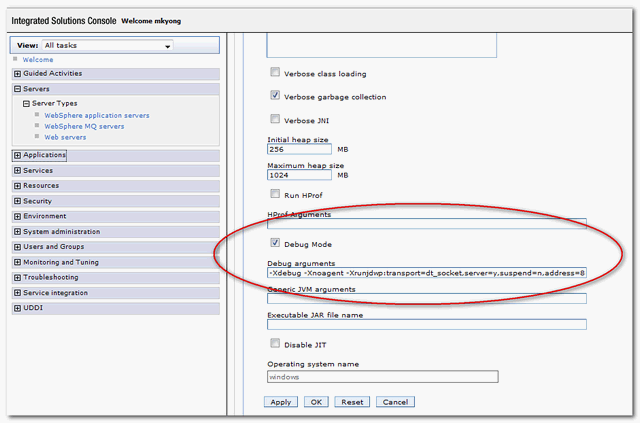
Now, WebSphere is started in debug mode, and listening on port 8888. (Later, Eclipse will connect to this port for debugging)
2. Install or deploy web application to WebSphere
“war” your web application, install (first-time) or deploy it to WebSphere. And start your web application in WebSphere.
3. Eclipse’s Java Debugger (jdb)
In Eclipse IDE, under your project source
1. Click on “Run”, “Debug Configurations…”
2. Select “Remote Java Application”, right click and select “New”
3. Renamed a new name , e.g “WebSphere 7 Instance”
4. In “Connection Type”, select default, “Standard (Socket Attached)”
5. Host, put your WebSphere host IP
6. Port, put 8888.
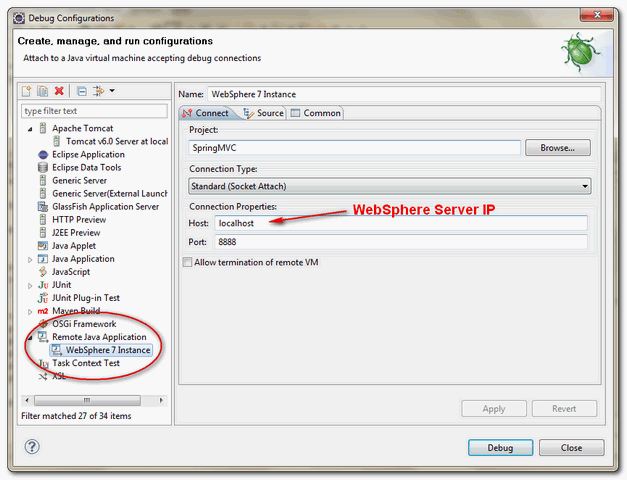
7. Click on the debug button.
Now, Eclipse debugger is started and connected to port 8888.
4. Debugging, see result!
Open your favor browser, and type your web application URL. Now, Eclipse will stop at your predefined breakpoint.
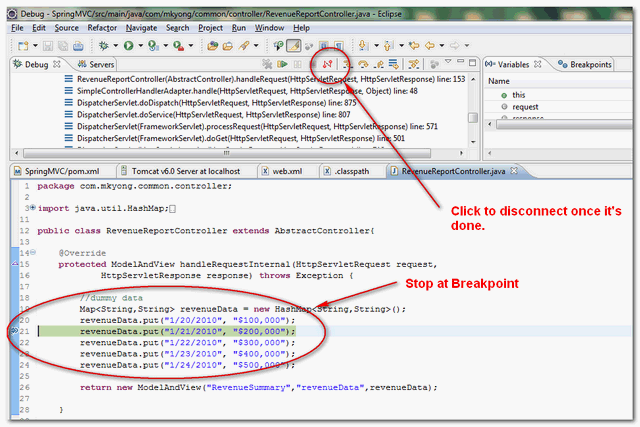
Done.
This Java Debugger (jdb) solution is able to apply on most of the Java Application Servers, like JBoss, WebLogic, or even in Servlet Container like Tomcat. The only problem in this method is, you have to make sure the deployed web application is synchronize with Eclipse’s debugging source code.

This is very helpfull when you don’t have access to install was locally, or even runnning via docker, thanks.
Hi Mk young
I would like to ask why we use public String toString() function in java bean class
Hi Guys ..
I always wanted to debug remote websphere application server . I configuredthe same in eclipse and Websphere application Server , as described in this post . Eventually, I got the same error “connection Refused ” as many of you experience , but thats not all , My application server didnt even restart . While starting I got the following error .
Server launched but failed initialization. startServer.log, SystemOut.log(or job log in zOS) and other log files under
However , I got the solution from this
post
I’m working with WAS 8.5 all this works like a breeze
It works on WAS 6.1 too.
Thanks for share.
Now I use Eclipse Indigo with Websphere 7.0 for development. In eclipse, I click Help > Eclipse Market and search by Websphere. But None of the development tools for 7.0, 8.0, 8.5 allow me to download & installed. (Pop up with repository not found)
Would you please help to provide the link that you can successfully installed the plugin?
Thanks
says Debug websphere application server 7.0 but freezes there, i am trying to remotely debug a virtual server.
Thanks for this post! I have started off looking for a plugin to integrate was7 with eclipse, but failed to make too much progress. This work around, however, was able to fit the bill.
Super man.. Thank you….
Thanks for the post, got it working.
I can’t get this to work for a local server at all. I’ve tried 127.0.0.1 as the host name, as well as my machine’s IP address and computer name. Nothing works, I keep getting a ‘Connection refused’ error message.
Never mind, my mistake.
May be you can share what’s your mistake? so that others will not make the same mistake again.
I use WAS 7.0 with JDK 1.6, I configured remote debugging on my local desktop with host name as localhost and port: 8888 (or anyother). I keep getting “connection refused” when i click on Debug button on Debbug configuration.
Tried to telnet the port 8888, I get could not open connection..
Not sure where I am going wrong. Please help.
Hi guys,
I am facing the same issue. I have the “Debug Mode” box checked and tried using the localhost, local IP address, hostname on Eclipse but all in vain.
Anybody has any other suggestions?
Hey I’m running WAS 7 locally on my laptop and trying to connect to it from Indigo which is also on the same machine ( Win 7 64 bit.) I’ve tried localhost, my ip, my machine hostname and I’m still getting the connection refused error. Can you tell us what you did to fix ?
I think he forgot to check the “Debug mode” box. It happened and happens to me quite often
Can you please share the steps to resolve this error ?
even if my websphere app server is on the localhost, giving “localhost” in debug configuration giving connection error while debugging.
It is working by giving the actual hostname.