In SOAP web service, each HTTP request or response encapsulates a SOAP envelope, these messages are easy to trace by using Eclipse IDE, build-in “TCP/IP monitor” tool. The idea is host another server in between the client and server to perform port forward function to intercept the HTTP traffic.
1. Normal SOAP envelope flows
In normal SOAP service, client send a HTTP request to server, and server send back a HTTP response to client directly.
1. Client ----> SOAP envelope ----> Server:9999

2. Server:9999 ----> SOAP envelope ---> Client
2. Intercepted SOAP envelope flows
To intercept SOAP envelope, you can host another server (“TcpMonitorServer”) in between client and server, see new flows :
1. Client ----> SOAP envelope ----> TcpMonitorServer:8888

2. TcpMonitorServer:8888 --> SOAP envelope ---> Server:9999

3. Server:9999 ----> SOAP envelope ---> TcpMonitorServer:8888

4. TcpMonitorServer:8888 ----> SOAP envelope ---> Client
This method required port changed in your web service client.
Eclipse IDE + TCP/IP Monitor
Eclipse IDE comes with a very easy to use traffic interceptor tool, known as “TCP/IP Monitor“. In this tutorial, we show you how to enable this “TCP/IP Monitor” in Eclipse IDE, and also intercept the SOAP messages generated by web service.
Here’s the steps to enable “TCP/IP Monitor” in Eclispe IDE.
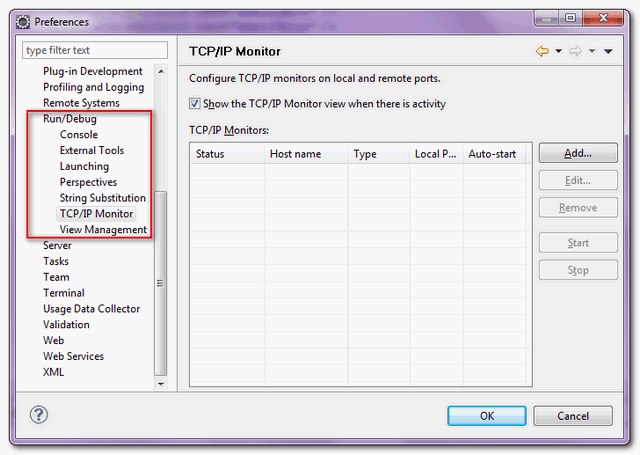
1. In IDE, access Windows –> Preferences –> Run/Debug –> TCP/IP Monitor
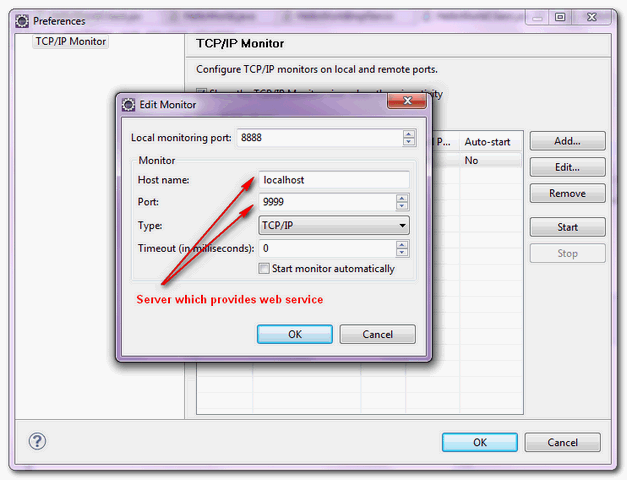
2. Fill in server information, and choose type = “TCP/IP”
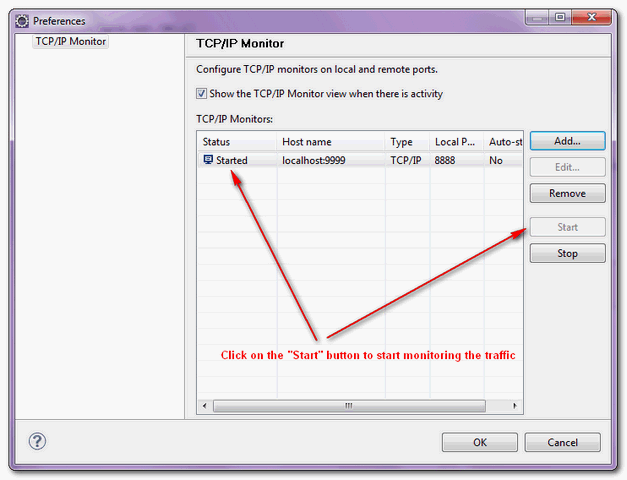
3. Click on the “start” button to start tracing the web service traffic.
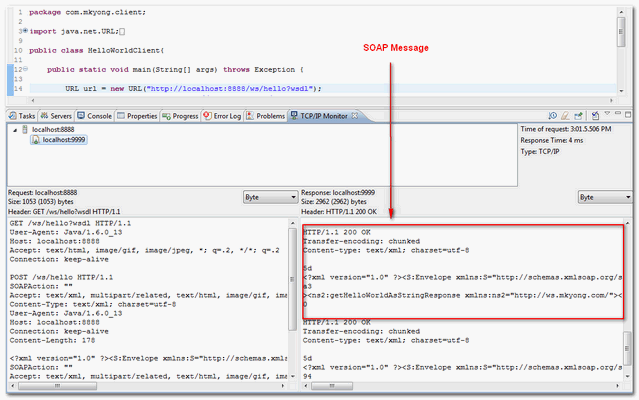
4. Show the traced messaged in the “TCP/IP Monitor” view if any.
You can copy this JAX-WS web service example and do the testing yourself.
In Netbean IDE, you can use TCP monitor to trace SOAP message.

can we track the request we are sending to the https,beacuse in the type we only have option for http not the secured
Hello Sir, I tried this method to intercept my soap envelope .But when i put local port 8080.then tomcat is not starting.when I put other port no then tcp/ip show nothing. kindly help.
Thanks it helps a lot
awesome. thanks boss
Thanks Yong.This is the simplest and practical tutorials i have ever read.
Thank friend, greetings from Colombia!
I am able to see the WSDL request/response in the TCP/IP monitor in my eclipse..But, i am not able to see the second request/response.. can anyone pl help me ?
I think it’s because the second request was made based on the endpoint url returned in the first response, which still points to the old port number (9999)
Fantastic! Thank you for sharing this.
Great!
does is work for https protocols?
if yes… could you please give one example of the configuration..
thanks,
how fetch current requested URL of browser into java code(using only core java)
Dear Sir,
I am professor at University of Mumbai. I read many of your tutorial. Very nice work for human kind. Just great.
I am trying to develop a java program for SOAP over UDP. Can you please help me? One of my MSC Computer Science project need it.
Thanking you,
Girish Tere,
DCS, Thakur College of Science and Commerce,
University of Mumbai
please tell me how i can make my own soapmonitor applet in axis2 using java?
thanks
excellent
I am trying to analyse my SOAP messages using the Eclispe TCP/IP Monitor. However when I see a request there is for example written:
Request: localhost:8888
Size: 1075 (1472) bytes
The type of the monitor is HTTP.
Why is there on value in a bracket and what is this value?
Ok I tried your example in my Struts page but it keeps on returning this kind of error
javax.xml.ws.WebServiceException: Undefined port type
why this happens?
http://stackoverflow.com/questions/13417454/javax-xml-ws-webserviceexception-undefined-port-type-java-struts-soap-wsdl
TCP/IP monitor does not work in eclipse
Yes, this is not working based on the example and configuration provided
here is the client url: http://localhost:9999/ws/hello?wsdl
and the end point http://localhost:9999/ws/hello
the TCP/IP monitor is set as follows:
local Montoring port: 8888
host name: localhost
Port: 9999
Type TCP/IP
timeout (in seconds): 0
start monitor automatically: checked
when i run the HelloWorldClient.java eclipse console displays the hello world message but no TCP/IP monitor activity?
the problem was that we need to change the client port from 9999 to 8888.
the publisher port remains 9999 but the client port is now 8888.
the concept makes sense after a while.
Thanks MK for the tutorials.
Thank you very much Zeus. Its working now….
And thanks MK !!!
Thanks Zeus.. I was facing the same.
Excellent tutorial, this tcp monitor is very helpful. I would suggest that you add the following line of code to the tutorial to show how the client port number changes once the tcp monitor is setup.
URL helloUrl = new URL("http://localhost:8888/ws/hello?wsdl");can you clarify?
Thanks. I needed to know that. Using localhost:9999 in the client as in the wsdl example code from the other tutorial did not make the TCP/IP Monitor intercept anything. Using your suggestion and recompiling and running the client did it.
Hi,
While I trace SOAP message in Eclipse IDE for localhost its working fine but i used another IP address it didnt show any trace(request,response).Give a solution for that.
eg:
Local Monitoring port:8888
HostName:Localhost
port:9999
Type:TCP/IP
When using this and running my application in same pc(means localhost) its getting output correct and showing trace(request,response).
But, When i am using the following details TCP/IP monitor
Local Monitoring port:8888
HostName:123.456.7.8
port:9999
Type:TCP/IP
I am getting correct output but i didnt get trace (request,response).Here i deploy my service endpoint in another pc having IP:123.456.7.8 .
What is problem here?
Thanks,
sudheer
put in your server host name than its IP address and make sure your using the right server port ..I hope it should work .