Often times, Eclipse IDE may need access to the Internet for some plugins install and update. If your computer is behind a proxy server, most company do, Eclipse will keep hanging and take very long time to process and failed at the end. You have to configure the proxy settings in Eclipse in order to pass through it.
Howh to configure Proxy Settings in Eclipse
1) In Eclipse IDE, select “Window –> Preferences”
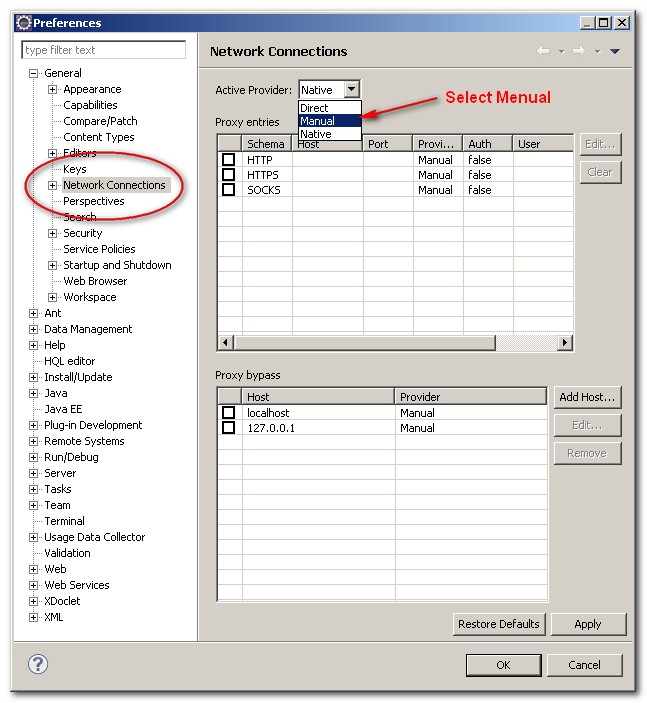
2) Preferences box prompt out, choose “Network Connections”.
3) Select “Manual” from Action Provider drop down list
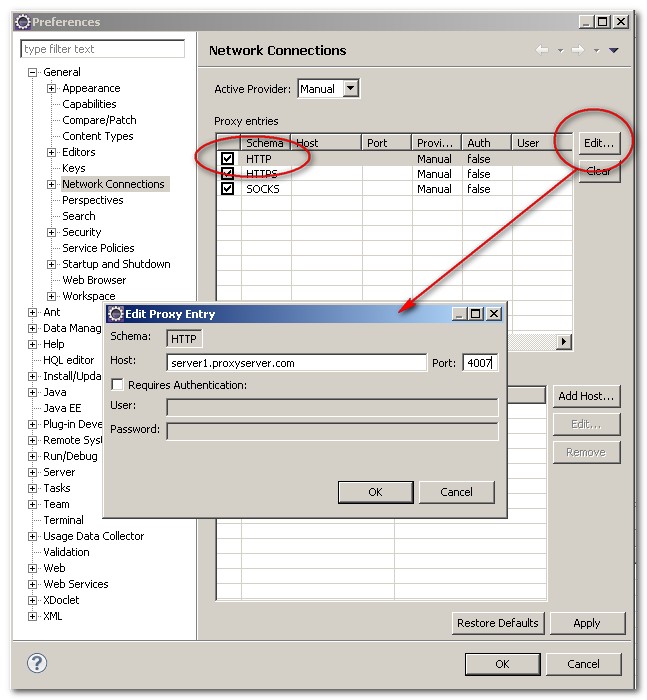
4) Select Http in the List and click “Edit” button
5) Fill in the proxy server host and port number, (fill in the username and password if any)
6) Ok, Done.
Now, Eclipse is able to connect to Internet and pass through Proxy server.

Eclipse’s proxy configuration requires both HOST and PORT. But what about auto proxy configuration *scripts*? In other words, if IT provides proxy configuration script (let’s say http://myhost.com/autoproxy.cgi) – how can that be used in Eclipse? I was not able to use such script …
1.When I am trying to create new maven project, getting the below error:
Could not resolve archetype org.apache.maven.archetypes:maven-archetype-quickstart:1.1 from any of the configured repositories.
Could not resolve artifact org.apache.maven.archetypes:maven-archetype-quickstart:pom:1.1
2.When trying to access eclipse marketplace getting below error:
MarketplaceDiscoveryStrategy failed with an error
Cannot complete request to https://marketplace.eclipse.org/api/p?client=org.eclipse.epp.mpc.core&os=win32&platform.version=4.17: Unable to read repository at https://marketplace.eclipse.org/api/p?client=org.eclipse.epp.mpc.core&os=win32&platform.version=4.17.
Unable to read repository at https://marketplace.eclipse.org/api/p?client=org.eclipse.epp.mpc.core&os=win32&platform.version=4.17.
PKIX path building failed: sun.security.provider.certpath.SunCertPathBuilderException: unable to find valid certification path to requested target
My company is not using proxy. But when I use at home eclipse works fine. Please guide me through it
we use proxy and I get the same errors you got. Going through these steps did not resolve the issue for me.
my company is using proxy and I have same issues as you described. I dont know solution yet
proxy bypass, you have to remove them, localhost and 127.1.1.0, and it will work.
removing proxy bypass (both localhost and 127.1.1.0) did not resolve issue for me which is
“PKIX path building failed: sun.security.provider.certpath.SunCertPathBuilderException: unable to find valid certification path to requested target”
it worked for me , thanks
Thank you. Useful. I fogot to restart so I try many times and not work.
thanks you very much. Amazing skills. Amazing post. What a release.
Hello,
I chose manual in the menu but all the boxes are already selected and I can’t deselect any of them. What could be the reason?
thanks!
Thank you so much Mkyong! Everytime I have a question I find the answer on your page!
Nice. it solved my problem. Thanks man…
I did use authentication, so maybe thats why i had to restart..?
Dont forget to restart eclipse. For me it only worked after setting proxy settings, and then restarting eclipse. Thanks for the tutorial!
Thanx….All ur tutorials are very usefull….
Thank you!
Workes like a miracle. First time ever, i was able to enter the eclipse marketplace from behind a firewall.
thank for this Tuto
You’re very clear dude! Cool!
thanks
I was having trouble with Eclipse Marketplace, turns out the proxy settings did it. Thank you for this.
Thank you very much it is worked for me…
you have to delete localhost and 127.1.1.0, it will work. it works with me.
withtout server and port,… only delete down , the localhost and 127.1.1.0
have a nice day,
not solving issue for me, deleted them and restarted eclipse, same issue
“PKIX path building failed: sun.security.provider.certpath.SunCertPathBuilderException: unable to find valid certification path to requested target”
Hi, I am not able to still connect through eclipse. I am not able to uncheck the socks connection and keeping it manual and running it gives an error saying UnreachableBrowserException. Error contacting the remote browser. It may have died. Is there any other thing or option to configure??
thanks
This works quite perfect. Thanks alot
Great help. Thanks.
Good point is not to configure SOCKS proxy if the proxy actually doesn’t support it.
Configure just HTTP and HTTPS and clear SOCKS
http://stackoverflow.com/questions/5857499/how-do-i-have-to-configure-the-proxy-settings-so-eclipse-can-download-new-plugin
Thanks bro 😉
Yes ! that was the solution !!! Thx !
Hey, thanks this works for me… 🙂
Hi Marek Sebera,
After three days of fiddling this really worked!!!
Kind of you.
hello, this is nice tutorial. thanks a lot
Hello, nice documentment, how do you trace the proxy connection from eclipse?
What trace strings should we set in the .options file?
should that be org.eclipse.core.net/debug=true
and org.eclipse.core.net.proxy/debug=true?
Thank in advance
thanks,one of the nice tutorial
thank you, very helpful
Thanks for your trouble, appreciate it.
Just interesting.
When i want to update eclipse i set “active provider” to “manual”.
If i want to connect to inner svn server i should check “active provider” to “native”.
Then all works fine.
Is there any way to do it automatically?