A guide to show you how to configure Tomcat 6.0 to support SSL or https connection.
1. Generate Keystore
First, uses “keytool” command to create a self-signed certificate. During the keystore creation process, you need to assign a password and fill in the certificate’s detail.
$Tomcat\bin>keytool -genkey -alias mkyong -keyalg RSA -keystore c:\mkyongkeystore
Enter keystore password:
Re-enter new password:
What is your first and last name?
  [Unknown]:  yong mook kim
What is the name of your organizational unit?
  //omitted to save space
  [no]:  yes

Enter key password for <mkyong>
        (RETURN if same as keystore password):
Re-enter new password:

$Tomcat\bin>
Here, you just created a certificate named “mkyongkeystore“, which locate at “c:\“.
You can use same “
keytool” command to list the existing certificate’s detail
$Tomcat\bin>keytool -list -keystore c:\mkyongkeystore
Enter keystore password:

Keystore type: JKS
Keystore provider: SUN

Your keystore contains 1 entry

mkyong, 14 Disember 2010, PrivateKeyEntry,
Certificate fingerprint (MD5): C8:DD:A1:AF:9F:55:A0:7F:6E:98:10:DE:8C:63:1B:A5

$Tomcat\bin>
2. Connector in server.xml
Next, locate your Tomcat’s server configuration file at $Tomcat\conf\server.xml, modify it by adding a connector element to support for SSL or https connection.
File : $Tomcat\conf\server.xml
 //...
 <!-- Define a SSL HTTP/1.1 Connector on port 8443
         This connector uses the JSSE configuration, when using APR, the
         connector should be using the OpenSSL style configuration
         described in the APR documentation -->

 <Connector port="8443" protocol="HTTP/1.1" SSLEnabled="true"
               maxThreads="150" scheme="https" secure="true"
               clientAuth="false" sslProtocol="TLS"
	       keystoreFile="c:\mkyongkeystore"
	       keystorePass="password" />
  //...
keystorePass="password" is the password you assigned to your keystore via “keytool” command.
3. Done
Saved it and restart Tomcat, access to https://localhost:8443/
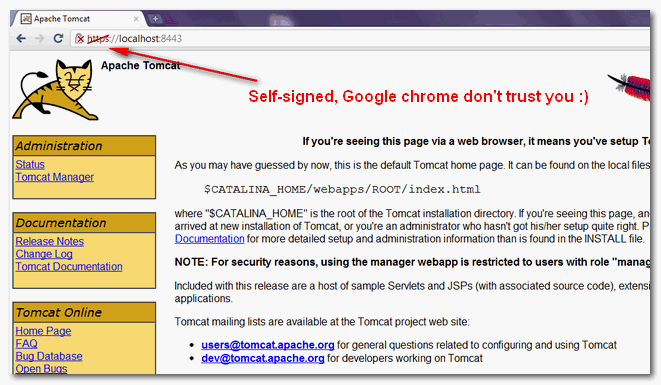
In this example, we are using Google Chrome to access the Tomcat configured SSL site, and you may notice a crossed icon appear before the https protocol :), this is caused by the self-signed certificate and Google chrome just do not trust it.
In production environment, you should consider buy a signed certificate from trusted SSL service provider like verisign or sign it with your own CA server

Hi mkyong,
I have configured configured ssl certificated in tomcat server.xml file through connector also my ssl certificate is signed from third party and i allowed only tls v1.2 but still when i access application there yellow insecure icon on url.
Please suggest some solutions
I am getting ERR_SSL_PROTOCOL_ERROR. Not showing apache tomcat screen.
Thanks man!
I have installed ssl but I do not want to mention 8443 in url. My web app should be open with domain only. How can it possible? please help me.
I have done all the things as according, but still, it’s not working, I am getting the same problem, “this site can’t be reached”
the server.xml is getting overwritten after restarting the server.
I’m getting error like that after passed https://localhost:8443 please let me know issues about chrome
NET::ERR_CERT_AUTHORITY_INVALID
I have enabled SSL with a self signed certificate that is valid…and when I call the mothods from the controller through postman they seem to work on https but also on http. It should not work on http anymore. Can somebody help me on this ? I have a spring boot application.
securedapp
/*
CONFIDENTIAL
do this ur problem will be solved
Hi Mykong… Thanks a lot this information.. It helped resolving SSL related issue in my end. I found the information provided by you are simple and user friendly…
Thanks Mykong. It is like breeze.
Hi All,
Can i use a certificate generate in other server?
Regards!!!
How to configure tomcat with APR?
what is CA server?
Thanks alot man. your tutorials are great.
Don’t forget to remove your tomcat instance from Eclipse and create a new one.
Thx, it was that trick
Hi MKYONG,
I’m unable to test this in eclipse Juno with Tomcat 8.
I have the following error.
Exception in thread “main” javax.xml.ws.WebServiceException: Failed to access the WSDL at: https://localhost:8280/HelloWorldWS/hello?wsdl. It failed with:
Unrecognized SSL message, plaintext connection?.
at com.sun.xml.ws.wsdl.parser.RuntimeWSDLParser.tryWithMex(RuntimeWSDLParser.java:136)
at com.sun.xml.ws.wsdl.parser.RuntimeWSDLParser.parse(RuntimeWSDLParser.java:122)
at com.sun.xml.ws.client.WSServiceDelegate.parseWSDL(WSServiceDelegate.java:226)
at com.sun.xml.ws.client.WSServiceDelegate.(WSServiceDelegate.java:189)
at com.sun.xml.ws.client.WSServiceDelegate.(WSServiceDelegate.java:159)
at com.sun.xml.ws.spi.ProviderImpl.createServiceDelegate(ProviderImpl.java:81)
at javax.xml.ws.Service.(Unknown Source)
at javax.xml.ws.Service.create(Unknown Source)
at com.mkyong.client.HelloWorldClient.main(HelloWorldClient.java:17)
Caused by: javax.net.ssl.SSLException: Unrecognized SSL message, plaintext connection?
at sun.security.ssl.InputRecord.handleUnknownRecord(Unknown Source)
at sun.security.ssl.InputRecord.read(Unknown Source)
at sun.security.ssl.SSLSocketImpl.readRecord(Unknown Source)
at sun.security.ssl.SSLSocketImpl.performInitialHandshake(Unknown Source)
at sun.security.ssl.SSLSocketImpl.startHandshake(Unknown Source)
at sun.security.ssl.SSLSocketImpl.startHandshake(Unknown Source)
at sun.net.www.protocol.https.HttpsClient.afterConnect(Unknown Source)
at sun.net.www.protocol.https.AbstractDelegateHttpsURLConnection.connect(Unknown Source)
at sun.net.www.protocol.http.HttpURLConnection.getInputStream(Unknown Source)
at sun.net.www.protocol.https.HttpsURLConnectionImpl.getInputStream(Unknown Source)
at java.net.URL.openStream(Unknown Source)
at com.sun.xml.ws.wsdl.parser.RuntimeWSDLParser.createReader(RuntimeWSDLParser.java:785)
at com.sun.xml.ws.wsdl.parser.RuntimeWSDLParser.resolveWSDL(RuntimeWSDLParser.java:236)
at com.sun.xml.ws.wsdl.parser.RuntimeWSDLParser.parse(RuntimeWSDLParser.java:107)
… 7 more
Firefox the following error message shown
Secure Connection Failed
An error occurred during a connection to localhost:8280.
SSL received a record that exceeded the maximum permissible length.
(Error code: ssl_error_rx_record_too_long)
Please do let me know for any inputs you have .
Regards,
Laskhmana Kumar
Hi, I configured my tomcat 8 with these settings. I can access it from localhost and it works.
But I can’t use it from global IP and remotely, I can access my app from HTTP port but not from HTTPS (8443). I have disabled firewall.
I tried resolveHosts=”true” (as I used for HTTP) too, but it didn’t work.
Did I miss anything for remote access?
I found my solution.
I am using Amazon EC2 VM and I have forgotten to open inbound rule for 8443 port in security group.
Thanks anyway.
I am also using AWS EC2 , I want to open my tomcat app with ssl without mention any port. I configured 80 and 443 port in server.xml. But some time it gives error like tomcat shutdown port not running. please help
hi
Hi Mkyong,
it was very help full,
Mkyong,
I have a configuration where I need HTTPS on the client side as well as for connections initiated by the Tomcat server itself. (i.e. Tomcat -> (SSL) -> Other server). I configured a connector running on port 8443 correctly (https cert shows up in browser), but Tomcat is not using the cert for communications initiated by it. Where can I configure the process’ keystore without modifying my code or using -D opts (which will show my keystore’s location and password out in the open)?
Thnx Mkyong….this example is simple nd useful..
This didn’t work for me, but it was close. When I launched myy server, I got this error message: No Certificate file specified or invalid file format.
I read somewhere that the fix was to change the protocol attribute in the Connector tag in the server.xml file.
I changed it from “HTTP/1.1” to “org.apache.coyote.http11.Http11NioProtocol” and relaunched my server, and it worked fine after that.
(I was running Tomcat 6.0.35)
hi, its working , but now i want to add https from my login page not from my home page…
hello, mr mkyoung i used keystoreFile=”c:mkyongkeystore”
keystorePass=”password” /> but it show me file not found exception…
plz help me .
Thanks Mkyong. You saved me from a sleepless night…
Could you please add some lines about the location of the keystore? Is its location relevant?
you just put on c:/yourfilename
Can u please the steps for Configuring the SSL in Jetty.Am stuck with it for long time.am in desperate need of help
Hello sir,
I want to know ssl enable for tomcat7.I followed as it is in above described for tomcat6.I created keystore file and password.Then after i start the applecation but i got MalFormedException Invalid byte 1 of 1-byte UTF-8.Plese reply me sir.
In my application after adding the above the code works in both http as well as https.Should we add any declaration in web.xml ?
yes we need to add the security constraint in the web.xml related to your project
it will work as redirect to http to https
MKYONG
PINGPONG
SINGTHESONG