To install Apache Maven on Windows, you just need to download the Maven’s zip file, unzip it to a folder, and configure the Windows environment variables.
Tested with :
- JDK 10
- Maven 3.6
- Windows 10
- Maven 3.3+ requires JDK 1.7+
- Maven 3.2 requires JDK 1.6+
- Maven 3.0/3.1 requires JDK 1.5+
1. JDK and JAVA_HOME
Make sure JDK is installed, and JAVA_HOME environment variable is configured.
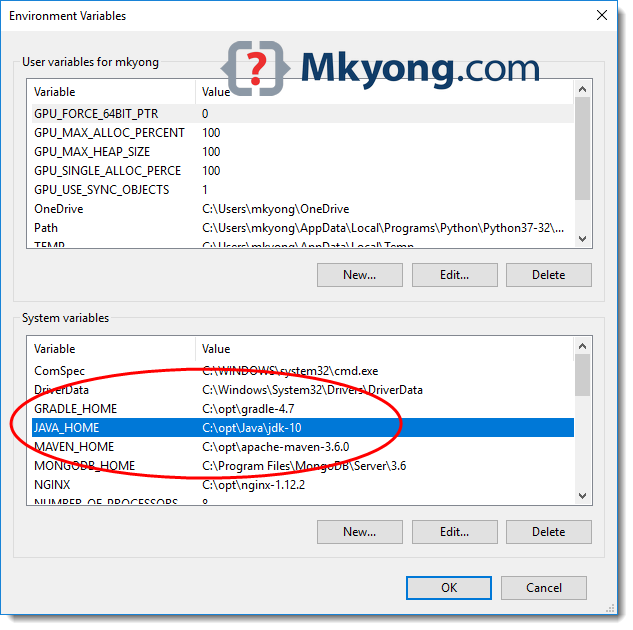
Please read this how to add JAVA_HOME on Windows 10
2. Download Apache Maven
2.1 Visit Maven official website, download the Maven zip file, for example : apache-maven-3.6.0-bin.zip.
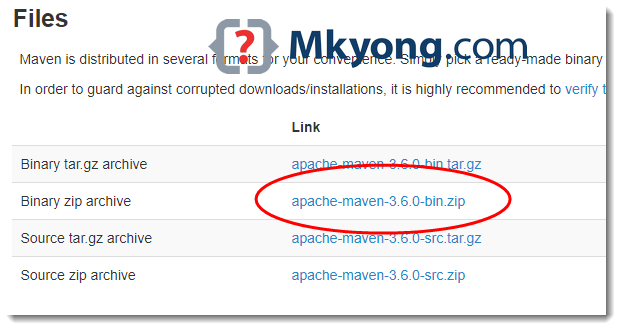
2.2 Unzip it to a folder. In this article, we are using c:\opt\apache-maven-3.6.0
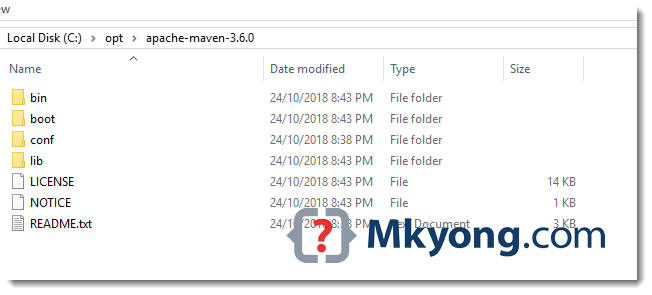
That’s all, just download and unzip, installation is NOT required.
3. Add MAVEN_HOME system variable
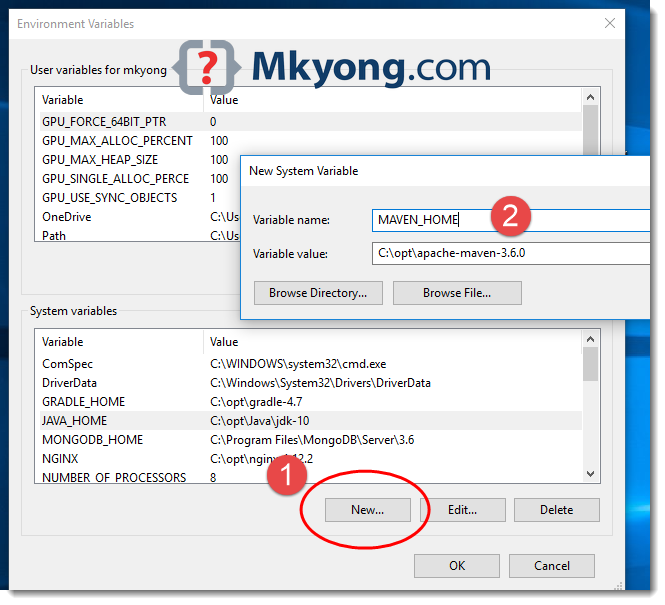
Add a MAVEN_HOME system variables, and point it to the Maven folder.
3.1 Press Windows key, type adva and clicks on the View advanced system settings
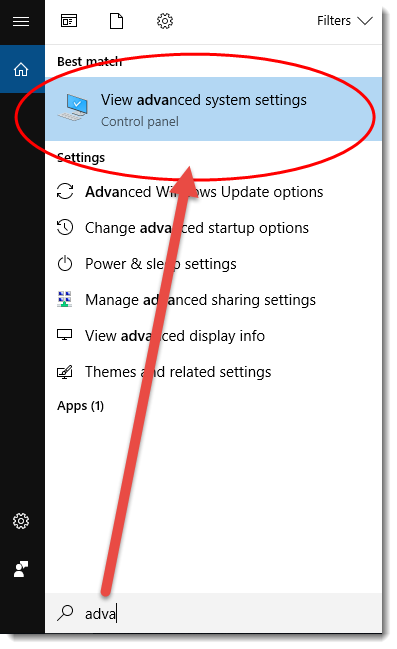
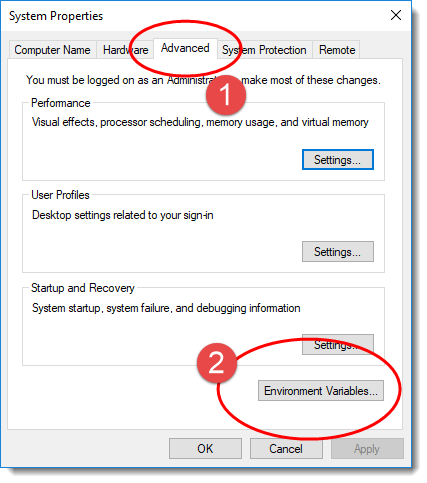
3.2 In System Properties dialog, select Advanced tab and clicks on the Environment Variables... button.
3.3 In “Environment variables” dialog, System variables, Clicks on the New... button and add a MAVEN_HOME variable and point it to c:\opt\apache-maven-3.6.0
4. Add %MAVEN_HOME%\bin To PATH
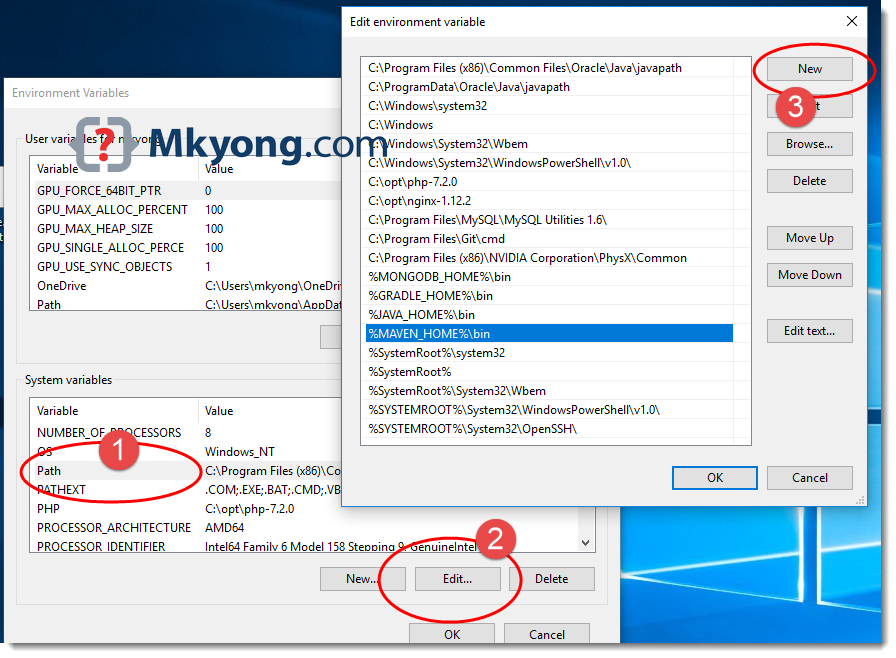
In system variables, find PATH, clicks on the Edit... button. In “Edit environment variable” dialog, clicks on the New button and add this %MAVEN_HOME%\bin
5. Verification
Done, start a new command prompt, type mvn –version :
C:\Users\mkyong>mvn -version
Apache Maven 3.6.0 (97c98ec64a1fdfee7767ce5ffb20918da4f719f3; 2018-10-25T02:41:47+08:00)
Maven home: C:\opt\apache-maven-3.6.0\bin\..
Java version: 10.0.1, vendor: Oracle Corporation, runtime: C:\opt\Java\jdk-10
Default locale: en_MY, platform encoding: Cp1252
OS name: "windows 10", version: "10.0", arch: "amd64", family: "windows"

C:\Users\mkyong>echo %MAVEN_HOME%
C:\opt\apache-maven-3.6.0
The Apache Maven is installed successfully on Windows.
6. FAQs
6.1 ‘mvn’ is not recognized as an internal or external command?
> mvn -version
'mvn' is not recognized as an internal or external command,
operable program or batch file.
Answer: Refer to Step 4, make sure the %MAVEN_HOME%\bin is added to the PATH system variable.
6.2 The JAVA_HOME environment variable is not defined correctly
> mvn -version
The JAVA_HOME environment variable is not defined correctly
This environment variable is needed to run this program
NB: JAVA_HOME should point to a JDK not a JRE
Answer: Refer to Step 2, make sure JDK is installed and the JAVA_HOME system variable is configured.

i have an error while running mvn -version saying : notrecognized command as external or internal command ,knowing that i have added MAVEN_HOME IN the system variables …so any idea how to fix it ??…thanks
Download Binary zip archive instead of Source zip archive from https://maven.apache.org/download.cgi. it worked for me.
Thank you bro!!! Damn wasting time just to download this things!!
I LOVE YOU!
Its working with directly adding the path , rather than setting MAVEN_HOME and then giving path in Environment varibale >> System variable > path
thanks sanskriti, it worked for me as well
Thank you. This is the only thing that worked for me after some 4-5 hours of just finding a solution
anyone who still has a problem. After you do all the above things or anything you found on stackoverflow and still not working do this
Environment Vars => System Variables => path => Edit => New => C:\opt\apache-maven-3.6.2\bin
Done. Worked for me
Thank you! It works!
thank you, friend! you saved me
Man i owe you one. Thank youu
yes this worked.Please add bin path in path
Make sure MAVEN_HOME is configured and %MAVEN_HOME%bin is added to the PATH.
Refer Step 3 and Step 4.
I had the same issue. I restarted cmd, then tried again ‘mvn -version’. It worked.
yes it worked for me
This. Thank you!
I just tried the steps mentioned in the above blog (not any comments), restarted cmd and it worked fine.
thanks a lot @Guna
Even i faced the same problem. Create a ‘mvn’ env variable it will work fine.
Run CMD as administrator and then type command mvn -version
I tried with comma and it worked but why comma?
mvn –version did not work for me. It was giving “BUILD FAILURE”. I had to use mvn –version (note double dash). Please note that I am using following environment:
Windows 7
Maven 3.3.9
Java 7
mvn –version
That’s with 2 hyphens
Hi
Actually, i am facing the problem when type command prompt mvn -version the error shows like that
C:Usersjkj>mvn -version
The JAVA_HOME environment variable is not defined correctly
This environment variable is needed to run this program
NB: JAVA_HOME should point to a JDK, not a JRE
But Java Home is already set and when enter command prompt like Java -Version
C:Usersjkj>java -version
java version “1.8.0_161”
Java(TM) SE Runtime Environment (build 1.8.0_161-b12)
Java HotSpot(TM) 64-Bit Server VM (build 25.161-b12, mixed mode)
so how to overcome this problem plz guide me asap…
I am facing the same problem, can someone please help me out
I had the same error problem just this week of July 2021, I found the problem was in the syntax above, “mvn -v”, was the problem. So I tried “mvn –v”, with double hyphens on Microsoft Windows 10, and this was the cure for the problem. Also in Environment variables I set the variable as “MAVEN_HOME = C:\Program Files\apache-maven\apache-maven-3.8.1\ ” …make sure to end with a backslash on MSWindows, MAVEN_HOME needs to look for the whole Environment and not the “bin”, such as “%MAVEN_HOME%\bin” .. The path will then relat to the path set in the variable setting url . Also, DO include the “bin” url when setting the PATH. You should also have JAVA_HOME set up the same way.When I did this then, … everything worked as it should. Now running the command line syntax for versions of Java_Home & Maven_Home should work.
JAVA_HOME variable should not contain /bin directory in its path
(example that worked for me: JAVA_HOME=C:\Program Files\Java\jdk1.7.0_76)
I have an error while running mvn -version: Error: -classpath requires class path specification
While running command using mvn -version i got error.
Microsoft Windows [Version 6.3.9600]
(c) 2013 Microsoft Corporation. All rights reserved.
C:UsersVik>mvn __V
Cannot find function ext-ms-win-cmd-util-l1-1-0.dll:CmdBatNotificationStub.
is not a valid Win32 application.
[INFO] Scanning for projects…
[INFO] ————————————————————————
[INFO] BUILD FAILURE
[INFO] ————————————————————————
[INFO] Total time: 0.100 s
[INFO] Finished at: 2018-01-25T12:35:55+05:30
[INFO] Final Memory: 10M/109M
[INFO] ————————————————————————
[ERROR] The goal you specified requires a project to execute but there is no POM
in this directory (C:UsersVik). Please verify you invoked Maven from
the correct directory. -> [Help 1]
[ERROR]
[ERROR] To see the full stack trace of the errors, re-run Maven with the -e swit
ch.
[ERROR] Re-run Maven using the -X switch to enable full debug logging.
[ERROR]
[ERROR] For more information about the errors and possible solutions, please rea
d the following articles:
[ERROR] [Help 1] http://cwiki.apache.org/confluence/display/MAVEN/MissingProject
Exception
Cannot find function ext-ms-win-cmd-util-l1-1-0.dll:CmdBatNotificationStub.
is not a valid Win32 application.
This is the most accurate tutorial about setting up maven in Windows. Working fine in Windows 10. Just need to pay attention in every step. Thank you!
This post helped a lot. If anyone have the following issue “Error: Could not find or load main class org.codehaus.plexus.classworlds.launcher.Launcher”. Download Binary zip archive files, Instead of downloading Source zip archives.
Thanks for your input, article is updated.
You are correct. Binary.zip should be downloaded.
Thank you man! worked perfectly
Thank you so much sir,it worked
Thank you so much!
Thanks for the awesome how to document.
Wow, finally some straight-forward steps in how to do this! You wouldn’t believe how horrible most of the web dev resources I find via search engine. 👎🏼 This is the third time I’ve used your website to get “stuff done”. Thank you for this resource! ♥²
Worked perfectly well!!!
Thanks a lot!! 😀
Thanks a lot. That was very detailed and clear.
It worked, Thanks
While doing the 4th step I am facing problem
I find the Path and after clicking on edit, I am not getting the window as you got the window with options like (new, browse, delete,moveup……) Just am getting the window with variable name and variable value. Die to these problem I am not able to do the fourth step, So can you please help me to resolve this issue.
thanks a lot
It didn’t work for me.
To make it work, In Path variable, instead of adding %M2_HOME%bin, I added C:Program FilesApachemavenbin.
And voila! it worked!
This post helped me. Thanks for sharing.
Helpful, thanks buddy
Thank you, I had to run CMD as administrator though
Thanks man!
very clear steps!
Hi all:
This works in Windows 10 latest with all updates as of Dec. 22, 2017.
Unzip maven zip file to any folder.
e..g c:Program Files is recommended for Windows 10. Like into c:Program FilesApacheMaven like I gave here.
Every setup given here is fine.
Just also MAKE SURE that you do the mvn variable setting (in BOTH user and system sections to make sure it catches it everywhere, to allow you to run Maven everywhere) and and in the path, i.e. %mvn%bin.
Close command terminal window and reopen a new one.
run: mvn -v or mvn –version
Output will look like this:
Apache Maven 3.5.2 (138edd61fd100ec658bfa2d307c43b76940a5d7d; 2017-10-18T02:58:13-05:00)
Maven home: C:Program FilesApachemavenapache-maven-3.5.2-binapache-maven-3.5.2bin..
Java version: 1.8.0_131, vendor: Oracle Corporation
Java home: C:Program Files (x86)Javajdk1.8.0_131jre
Default locale: en_US, platform encoding: Cp1252
OS name: “windows 10”, version: “10.0”, arch: “x86”, family: “windows”
‘cmd’ is not recognized as an internal or external command,
operable program or batch file.
I also ran the mvn command:
e..g.
mvn clean install -Dmaven.test.skip=true
and it built my project without any errors.
Please Note:
Ignore the last part it’s a false positive message, meaning nothing in this context:
i.e.
….
….
‘cmd’ is not recognized as an internal or external command,
operable program or batch file.
Cheers. Happy Holidays All.
thanks a lot Lisa for the win 10 note and for detailed explanation, it worked very well ..much appreciated
This worked for me! Thanks much!!!
thanks worked great
I can’t run mvn command in Git Bash but works just fine in the Windows command prompt. I assume that this has to do with my user access rights which is not system administrator level. Any workaround on this one? Or any one experience the same situation and has resolve it. I’ve done everything I’ve found from the net for the possible solution but nothing works. BTW, I am running on a Windows 10 machine. Thanks.
Hi, have you found any solution for this?
echo $JAVA_HOME
this article work for me on windows 10, thanks.
Use mvn -v
Also, had to add env variable with name ‘mvn’ and direct it to the bin folder, and then it was smooth sailing for me.
Refer to step 4, make sure %MAVEN_HOME%\bin is added to PATH
I have added the absolute path of \bin folder at the end of PATH variable and issue related to step 4 resolved
I added it more than once, it doesn’t work. it’s getting frustrating, I have been trying to accomplish this simple task for 2 days now.
Thanks for such a simpler way of making understand
Can you explain more how did u add mvn env variable directing to bin . Cause my mvn cmd is not recognised even after adding mvn variable
One special note. If you add MAVEN_HOME as a User defined variable and you do not add this as a SYSTEM variable then the Path will NOT see it. You need to add this as a SYSTEM Variable then the Path reference will see the MAVEN_HOME.
“User Var: MAVEN_HOME = C:\apache-maven-3.5.4 SYSTEM Var: MAVEN_HOME = C:\apache-maven-3.5.4 , AND I added this to Path = %MAVEN_HOME%\bin; ”
I added the ” ” in order for this forums settings to NOT strip out the “/”
Note: JAVA_HOME needs to be set correctly as well to the location your JDK or JRE has been installed.
you are absolutely right after adding on user var too , it works, Thank you so much
i tried your method, did not work for me 🙁
Works for me.
Adding the variable directing to bin under Path is given above. And, then to run the mvn command successfully, you’ll have to first navigate to the folder where maven folder has been placed.
Thank You !
Thank you. Super helpful documentation.