In this tutorial, we will show you how to use Eclipse to create a Google App Engine (GAE) Python web project (hello world example), run it locally, and deploy it to Google App Engine account.
Tools used :
- Python 2.7
- Eclipse 3.7 + PyDev plugin
- Google App Engine SDK for Python 1.6.4
P.S Assume Python 2.7 and Eclipse 3.7 are installed.
1. Install PyDev plugin for Eclipse
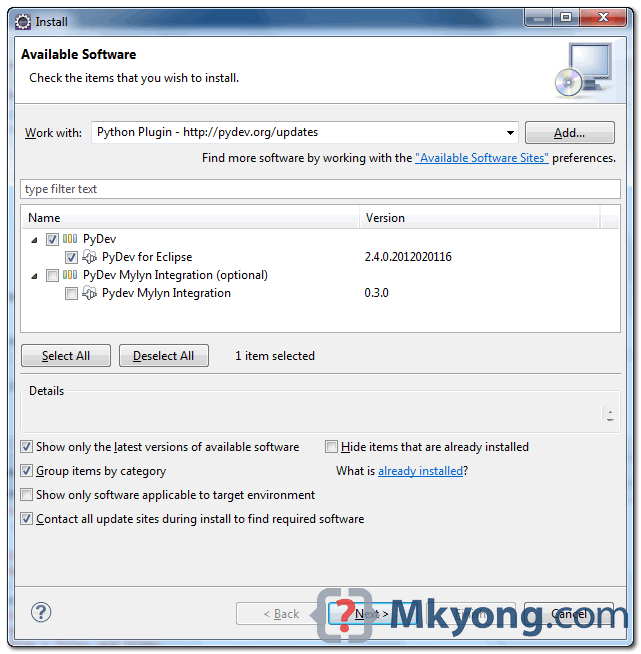
Use following URL to install PyDev as Eclipse plugin.
http://pydev.org/updates
Figure 1 – In Eclipse , menu, “Help –> Install New Software..” and put above URL. Select “PyDev for Eclipse” option, follow steps, and restart Eclipse once completed.
2. Verify PyDev
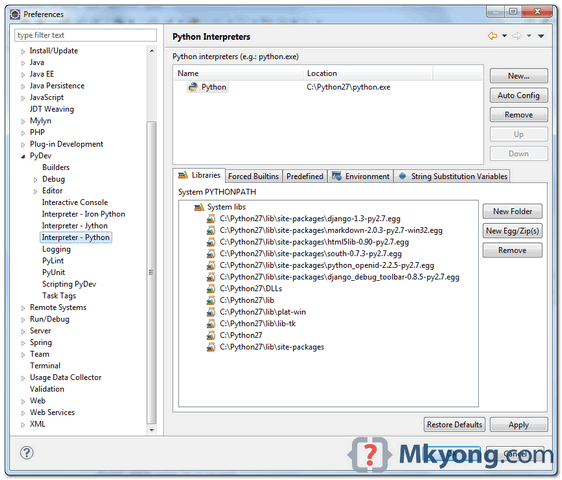
After Eclipse is restarted, make sure PyDev’s interpreter is pointed to your “python.exe“.
Figure 2 – Eclipse -> Windows –> Preferences, make sure “Interpreter – Python” is configured properly.
3. Google App Engine SDK Python
Download and install Google App Engine SDK for Python.
4. Python Hello World in Eclipse
Following steps to show you how to create a GAE project via Pydev plugin.
Figure 4.1 – Eclipse menu, File -> New -> Other… , PyDev folder, choose “PyDev Google App Engine Project“.
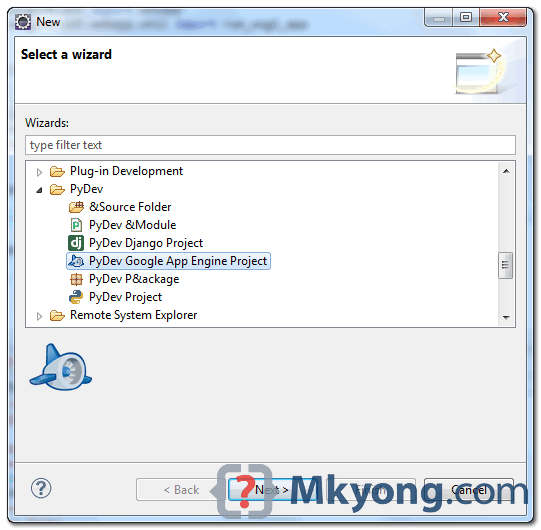
Figure 4.2 – Type project name, if the interpreter is not configure yet (in step 2), you can do it now. And select this option – “Create ‘src’ folder and add it to PYTHONPATH“.
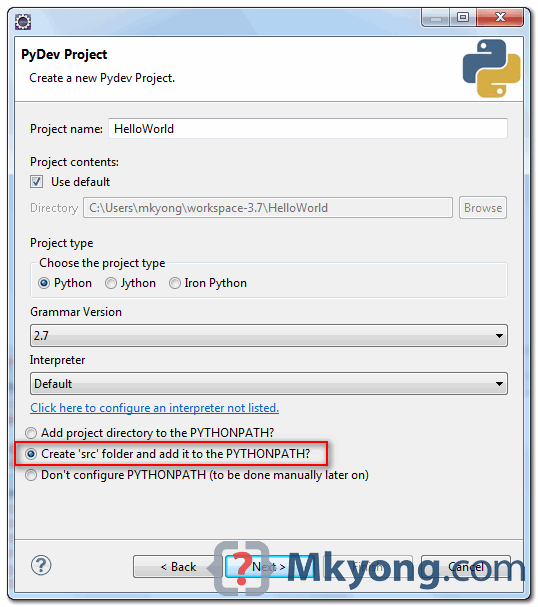
Figure 4.3 – Click “Browse” button and point it to the Google App Engine installed directory (in step 3).
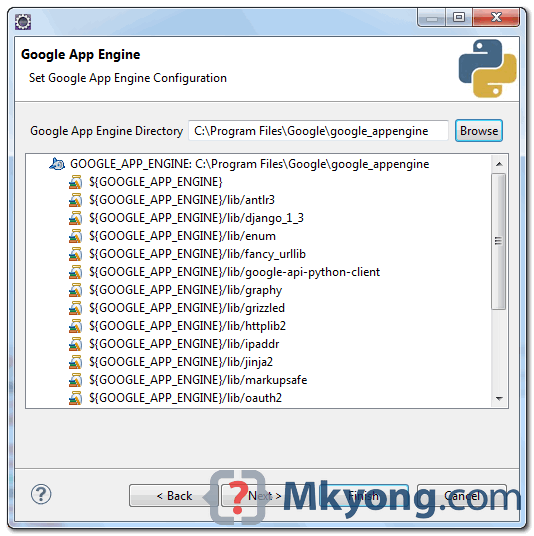
Figure 4.4 – Name your application id in GAE, type anything, you can change it later. And choose “Hello Webapp World” template to generate the sample files.
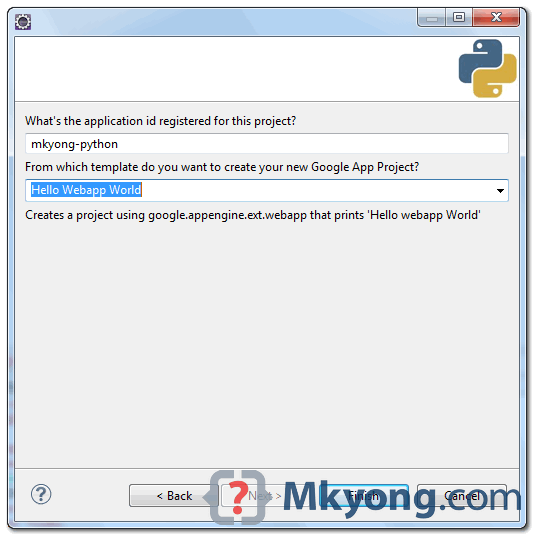
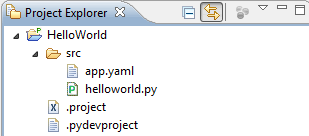
Figure 4.5 – Done, 4 files are generated, Both “.pydevproject” and “.project” are Eclipse project files, ignore it.
Review the generated Python’s files :
File : helloworld.py – Just output a hello world.
from google.appengine.ext import webapp
from google.appengine.ext.webapp.util import run_wsgi_app

class MainPage(webapp.RequestHandler):

    def get(self):
        self.response.headers['Content-Type'] = 'text/plain'
        self.response.out.write('Hello, webapp World!')

application = webapp.WSGIApplication([('/', MainPage)], debug=True)

def main():
    run_wsgi_app(application)

if __name__ == "__main__":
    main()
File : app.yaml – GAE need this file to run and deploy your Python project, it’s quite self-explanatory, for detail syntax and configuration, visit yaml and app.yaml reference.
application: mkyong-python
version: 1
runtime: python
api_version: 1

handlers:
- url: /.*
  script: helloworld.py
5. Run it locally
To run it locally, right click on the helloworld.py, choose “Run As” –> “Run Configuration”, create a new “PyDev Google App Run“.
Figure 5.1 – In Main tab -> Main module, manually type the directory path of “dev_appserver.py“. “Browse” button is not able to help you, type manually.
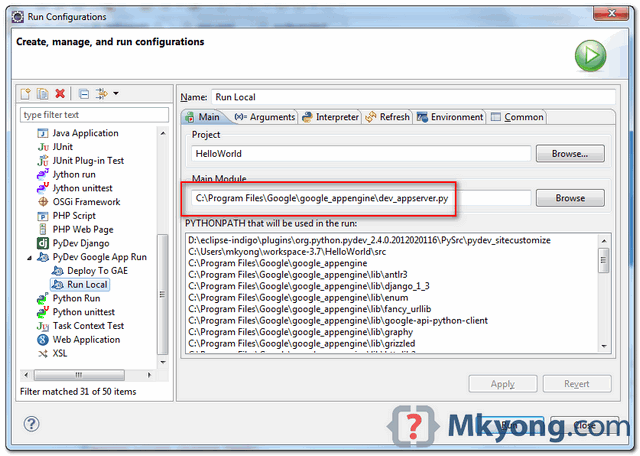
Figure 5.2 – In Arguments tab -> Program arguments, put “${project_loc}/src“.
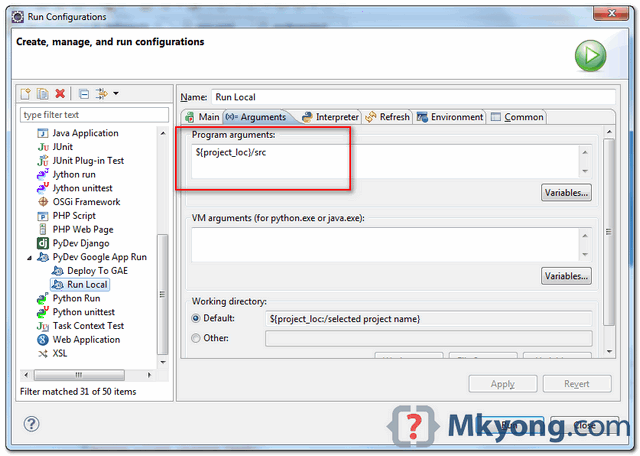
Figure 5.3 – Run it. By default, it will deploy to http://localhost:8080.
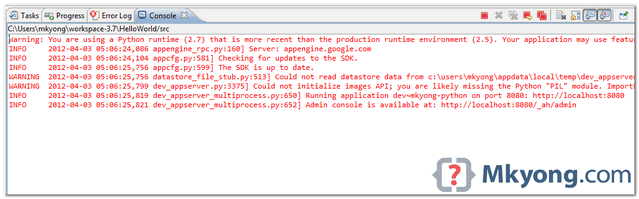
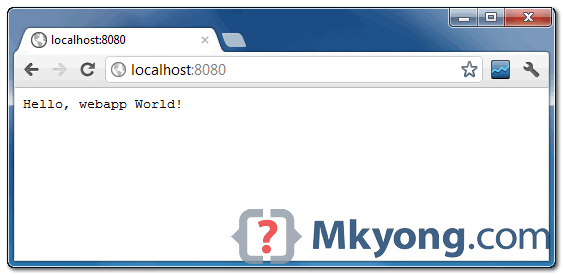
Figure 5.4 – Done.
5. Deploy to Google App Engine
Register an account on https://appengine.google.com/, and create an application ID for your web application. Review “app.yaml” again, this web app will be deployed to GAE with application ID “mkyong-python“.
File : app.yaml
application: mkyong-python
version: 1
runtime: python
api_version: 1

handlers:
- url: /.*
  script: helloworld.py
To deploy to GAE, see following steps :
Figure 5.1 – Create another new “PyDev Google App Run”, In Main tab -> Main module, manually type the directory path of “appcfg.py“.
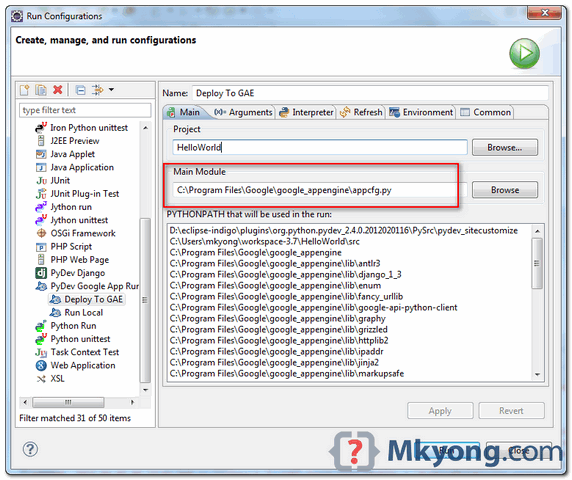
Figure 5.2 – In Arguments tab -> Program arguments, put “update ${project_loc}/src“.
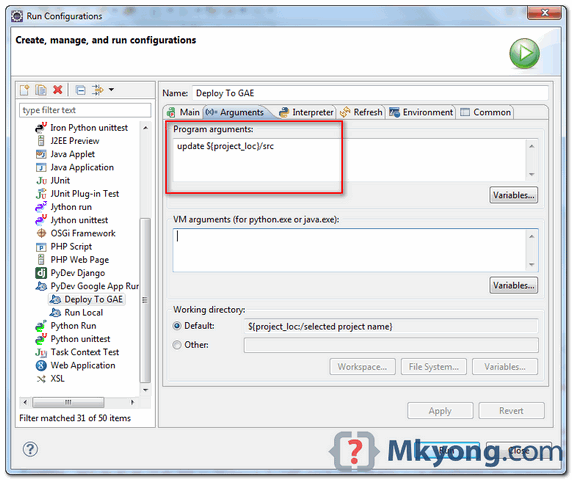
Figure 5.3 – During deploying process, you need to type your GAE email and password for authentication.
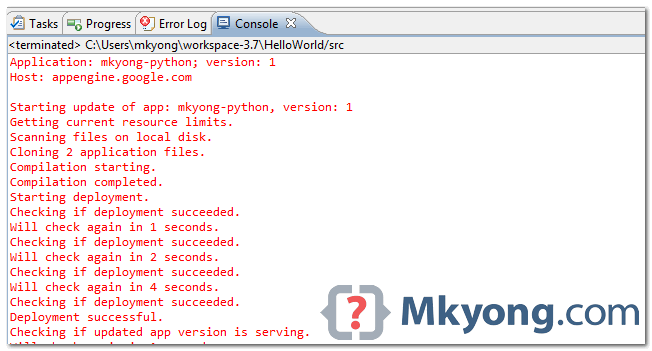
Figure 5.4 – If success, the web app will be deployed to – http://mkyong-python.appspot.com/.
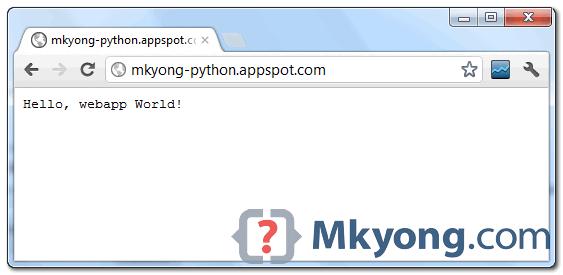
Done.

Great stuff man – helped a lot
Working well after almost 3 years! Thank you 1000!
I’ve also referred to gae helloworld tutorial, using webapp2 framework instead of the old webapp https://cloud.google.com/appengine/docs/python/gettingstartedpython27/helloworld
Console just says this:
Traceback (most recent call last):
File “E:Program filesGoogle app enginedev_appserver.py”, line 82, in
_run_file(__file__, globals())
File “E:Program filesGoogle app enginedev_appserver.py”, line 78, in _run_file
execfile(_PATHS.script_file(script_name), globals_)
File “E:Program filesGoogle app enginegoogleappenginetoolsdevappserver2devappserver2.py”, line 986, in
main()
File “E:Program filesGoogle app enginegoogleappenginetoolsdevappserver2devappserver2.py”, line 979, in main
dev_server.start(options)
File “E:Program filesGoogle app enginegoogleappenginetoolsdevappserver2devappserver2.py”, line 722, in start
options.config_paths, options.app_id)
File “E:Program filesGoogle app enginegoogleappenginetoolsdevappserver2application_configuration.py”, line 740, in __init__
module_configuration = ModuleConfiguration(config_path, app_id)
File “E:Program filesGoogle app enginegoogleappenginetoolsdevappserver2application_configuration.py”, line 113, in __init__
self._config_path)
File “E:Program filesGoogle app enginegoogleappenginetoolsdevappserver2application_configuration.py”, line 360, in _parse_configuration
with open(configuration_path) as f:
IOError: [Errno 2] No such file or directory: ‘E:\Program’
Excellent blog. I had a problem with a compilation . “WARNING: This application is using the Python 2.5 runtime, which is deprecated! It should be updated to the Python 2.7 runtime as soon as possible, which offers performance improvements and many new features. Learn how simple it is to migrate your application to Python 2.7 at https://developers.google.com/appengine/docs/python/python25/migrate27“. I was reading the google solution but I don’t undertand whats things exactly I should modify in Eclypse. Best Regards
I’ve learn several excellent stuff here. Definitely price
bookmarking for revisiting. I surprise how so much effort you put
to create the sort of fantastic informative website.
Worked like a charm.
Thanks.
At this time it looks like WordPress is the
top blogging platform available right now. (from what I’ve read) Is that what you are using on your blog?
Very nice one. Much appreciated
Thanx a lot! 😀
i can’t fix it right. It shows some error when given run options. especially with the deploy to gae option.
I can’t run the python project. It shows some error with deploy to Gae. what should i do??? please help me.. i am using eclipse juno and python 3.3.
I usually do not leave a great deal of remarks, however i did a
few searching and wound up here Google app engine Python hello
world example using Eclipse. And I do have a
few questions for you if it’s allright. Could it be only me or does it seem like a few of these comments appear as if they are written by brain dead visitors? 😛 And, if you are writing at other social sites, I’d like to follow
everything fresh you have to post. Could you
list of the complete urls of your social sites like your Facebook
page, twitter feed, or linkedin profile?
Of course specialty lighting can be used, but it is not necessary.
Whether using tap or well Water you are certain to run into something that your
aquatic inhabitants are not going to appreciate including Metals, Phosphates, Nitrates, Chlorine and Chloramines (in some
locations). I set the timer to go 5 min 2 times a day and my salinity
stays at 1.
Generally I do not learn article on blogs,
but I would like to say that this write-up very compelled me to check out and do so!
Your writing taste has been amazed me. Thanks, quite great article.
this is how i got it to work for me
1_i put this: ${GOOGLE_APP_ENGINE}/dev_appserver.py in main module
2_and this: “${workspace_loc:(your folder name)\src}” in program arguments
3_and this: ${workspace_loc:} in working directory / Other
note: (your folder name) should be the name of your project folder
This meant that anywhere hot water was needed a small gas or electric powered heating unit would be located so there would be at least of couple of units in a home,
a small one in the kitchen and probably a larger one in the bathroom, each of which could
produce hot water in a matter of seconds. While carrying
out this task, it’s important to hold onto the spout of the tap, otherwise you could end up with a cracked basin or pipe leak. In most cases, it’s
unlikely you’ll have an exact replica of your toilet flush to hand.
The first thing you need to do before anything else is to get yourself a domain name. A domain name is the name you want to give to your website. For example, the domain name of the website you’re reading is “thesitewizard.com”. To get a domain name, you have to pay an annual fee to a registrar for the right to use that name. Getting a name does not get you a website or anything like that. It’s just a name. It’s sort of like registering a business name in the brick-and-mortar world; having that business name does not mean that you also have the shop premises to go with the name.-
My own, personal blog
<",http://www.prettygoddess.com/
You made some really good points there. I checked on the internet to learn
more about the issue and found most people will go along
with your views on this site.
I’m using Eclipse SDK 4.2.0 and when i try to test the app engine project (CS253 – unit 2-40), i get the following error:
Traceback (most recent call last):
File “C:\py3eg\hello-udacity2\main.py”, line 18, in
import webapp2
File “C:\Program Files (x86)\Google\google_appengine\lib\webapp2\webapp2.py”, line 571
except Exception, e:
^
SyntaxError: invalid syntax
If I go into the webapp2.py file and attempt to change the statement (except Exception, e:) by removing the comma, it won’t let me save the file after the chagne.
I have both Python 2.7 and Python 3.2 installed but based on the syntax that Eclipse is accepting on a simple PRINT statement, it appears to be okay with 2.7.
So, I can’t import webapp2 which means I can’t test the app engine in Eclipse. Any help’d be appreciated.
did you solved? I have the same problem. thanks
I cannot run it on Eclipse Juno. PyDev Run Configurations does not show “Deploy to GAE” or “Run Local” under PyDev Google App Run. Is there an alternative way to launch in Eclipse 4.2?
did it work on you computer bro???
Awesome M/!!!!!
Your write-up provides verified beneficial to me personally.
It_s very helpful and you’re simply clearly extremely well-informed in this area. You have exposed my face to different views on this specific subject with intriguing, notable and reliable content.
When you set the arguments, you must put the double quotation mark along with the parameter: “${project_loc}/src“. That was missing in the snapshot.
I AM VERY THANKFUL TO YOU Mr.MkYong….
It Works
It worked for me with the following arguments:
${project_loc}/src
–port=9999
Do not use –skip_sdk_update_check that’s what caused error to Faust user
I chosed to use port 9999 to avoid conflicts with the classic 8080 😉
It is dashdash + port=9999
Two dashes togheter ( – – ) before command NOT a single one. You’re warned 😉
Really an awesome tutorial! \m/ ..
Thanks, great tutorial. It helps beginners lot.
Thanks Kyong. Note that In Figure 4.4, you can have any name, but seems like it has to be in small letters. I got some headaches for that.
Hi
nice, thanks, helped me start quickly…
question:
how to debug localy ? I setupped a breakpoint and run as Debug but the code did not stop a break point …
any idea ?
Thanks in advance
Thank you so much! Worked like a charm! I had so much trouble using the Google App Engine Launcher, the site wasn’t updating even though I had changed the Python code, saved and redeployed it and I almost started panicking 😛 Thank you!
nice. Thanks.
Thanks. It nearly worked for me – all I had to change was the arguments list (note that I opted out on the src folder):
“${project_loc}”
–skip_sdk_update_check
Thank you Mr. Kyong…
I got an error on running the project locally:
—
WARNING 2012-05-20 19:42:37,608 rdbms_mysqldb.py:74] The rdbms API is not available because the MySQLdb library could not be loaded.
Runs a development application server for an application.
dev_appserver.py [options]
Application root must be the path to the application to run in this server.
Must contain a valid app.yaml or app.yml file.
etc.
—
My configuration is
Eclipse Indigo
PyDev 2.5.0.2….
App Enginge 1.6.5
Any ideas?
When you set the arguments, you must put the double quotation mark along with the parameter: “${project_loc}/src“. This will solve your problem…
After looking around for quite some time, I found your article. Really helped me 🙂
Thanks a lot 🙂
One thing to mention, don’t put spaces in the project name. You’ll get an error – or at least I did. Took me a little while of head-scratching and keyboard-pounding to figure that one out.
Absolute newbie, worked perfectly my very first try! Thanks!
Hello Mr. Kyong! Thanks so much! Your tutorial is also working with Eclipse 3.6 (luckily, upgrading the whole environment to 3.7 would likely had cost a lot of time and effort). I did have to upgrade to Python 2.7 though, because GoogleAppEngine 1.6.4 seems to need it (otherwise error messages with 2.6).
I got it going now for the local run part, let’s hope it will work for the deployment as well.
Thumbs up!
Good to know that 🙂
Very helpful tutorial. Thanks!
There are some problems in 5. Deploy to Google App Engine:
1. It quits the local app.
2. The password is visible in the console.
3. Looks like it does not upload index.yaml if it is not added into PyDev project. (It does exist in src folder, but I don’t see it in PyDev Package Explorer. I don’t know how to add it into this Explorer.)
Solution:
Right-click src in PyDev Package Explorer. Choose PyDev: Google App Engine->Upload
Input email/password in “Send to prompt:”
It solves the 3 problems above.
This tutorial really helps me a lot.
Thanks!