Firefox keeps browsing history of every web pages you visited. Sometime you need to clear browsing history in order to hide the web pages you visited before.
Browser History
To view your web page history in Firefox, do this
- Hold down the CTRL key and press H.
- Click History tab, and click Show in Sidebar.
Clear Browsing History In Firefox
There are 3 ways to do it :
1. CTRL+SHIFT+DEL
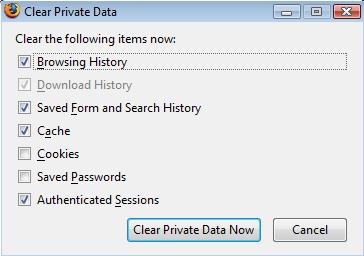
In Firefox , press on this combination key : CTRL+SHIFT+DEL, to show a “Clear Private Data” pop up window. You can select the private data you want to clear and click on the “Clear Private Data Now” button.
1. Tools –> Clear Private Data
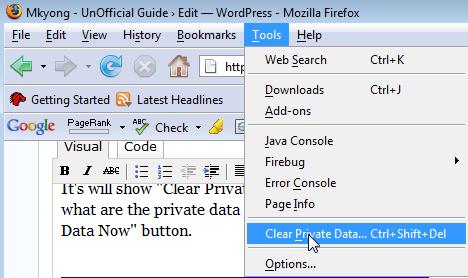
In Firefox, select Tools –> Clear Private Data. It will prompt a “Clear Private Data” dialog box, you can select the private data you want to clear and click on the “Clear Private Data Now” button.
3. Tools –> Options
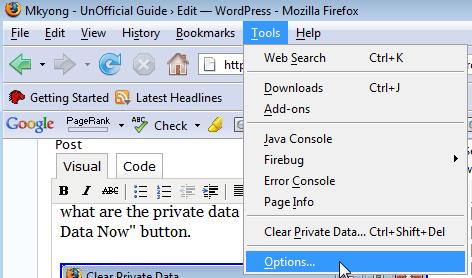
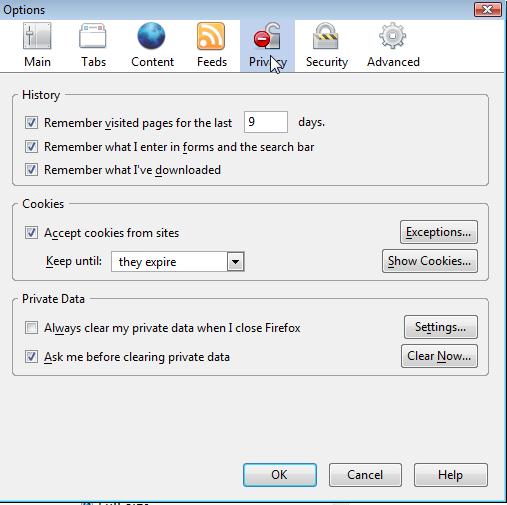
In Firefox, select Tools –> Options. It will pop up an options dialog box, select Privacy tab, Click on the “Clear Now” button to show another “Clear Private Data” dialog box, you can select the private data you want to clear and click on the “Clear Private Data Now” button.
Done.
