In Android, the “android.widget.ToggleButton” is a special class to render a button which has only two states, for example, “on and “off”. It’s best alternative to radio buttons to turn on or turn off a function.
In this tutorial, we show you how to use XML to create two toggle buttons and a normal button, when user click on the normal button, it will display the current state of both toggle buttons.
P.S This project is developed in Eclipse 3.7, and tested with Android 2.3.3.
1. Custom String
Open “res/values/strings.xml” file, add some custom string for toggle buttons.
File : res/values/strings.xml
<?xml version="1.0" encoding="utf-8"?>
<resources>
    <string name="app_name">MyAndroidApp</string>
    <string name="toggle_turn_on">Turn On</string>
    <string name="toggle_turn_off">Turn Off</string>
    <string name="btn_display">Display</string>
</resources>
2. ToggleButton
Open “res/layout/main.xml” file, add two “ToggleButton” and a normal button, inside the LinearLayout.
File : res/layout/main.xml
<?xml version="1.0" encoding="utf-8"?>
<LinearLayout xmlns:android="http://schemas.android.com/apk/res/android"
    android:layout_width="fill_parent"
    android:layout_height="fill_parent"
    android:orientation="vertical" >

    <ToggleButton
        android:id="@+id/toggleButton1"
        android:layout_width="wrap_content"
        android:layout_height="wrap_content"
        android:text="ToggleButton" />

    <ToggleButton
        android:id="@+id/toggleButton2"
        android:layout_width="wrap_content"
        android:layout_height="wrap_content"
        android:textOn="@string/toggle_turn_on"
        android:textOff="@string/toggle_turn_off"
        android:checked="true" />

    <Button
        android:id="@+id/btnDisplay"
        android:layout_width="wrap_content"
        android:layout_height="wrap_content"
        android:text="@string/btn_display" />

</LinearLayout>
Review the “togglebutton2”, we did customized the togglebutton2’s display text on and off and made it checked by default.
3. Code Code
Inside activity “onCreate()” method, attach a click listeners on a normal button, to display the current state of the toggle button.
File : MyAndroidAppActivity.java
package com.mkyong.android;

import android.app.Activity;
import android.os.Bundle;
import android.view.View;
import android.view.View.OnClickListener;
import android.widget.Button;
import android.widget.Toast;
import android.widget.ToggleButton;

public class MyAndroidAppActivity extends Activity {

  private ToggleButton toggleButton1, toggleButton2;
  private Button btnDisplay;

  @Override
  public void onCreate(Bundle savedInstanceState) {
	super.onCreate(savedInstanceState);
	setContentView(R.layout.main);

	addListenerOnButton();

  }

  public void addListenerOnButton() {

	toggleButton1 = (ToggleButton) findViewById(R.id.toggleButton1);
	toggleButton2 = (ToggleButton) findViewById(R.id.toggleButton2);
	btnDisplay = (Button) findViewById(R.id.btnDisplay);

	btnDisplay.setOnClickListener(new OnClickListener() {

		@Override
		public void onClick(View v) {

		   StringBuffer result = new StringBuffer();
		   result.append("toggleButton1 : ").append(toggleButton1.getText());
		   result.append("\ntoggleButton2 : ").append(toggleButton2.getText());

		   Toast.makeText(MyAndroidAppActivity.this, result.toString(),
			Toast.LENGTH_SHORT).show();

		}

	});

  }
}
4. Demo
Run the application.
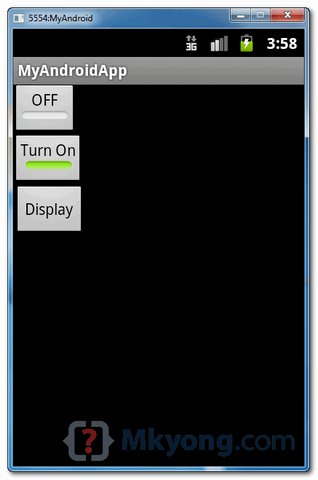
1. Result, toggleButton2 is using the customized string, and checked by default.
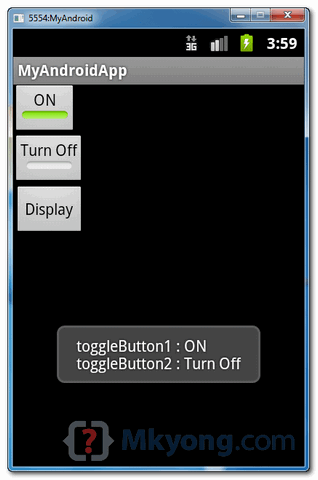
2. Checked toggleButton1 and unchecked toggleButton2, and click on the display button, the current state of both toggle buttons will be displayed.

Why do we need another button to display the state of toggle button this is ridiculous. Why can’t just the state on toggle view being clicked itself.
You can consider the button to display as a summary of states before their saves, by imagining the case you would have several toggle buttons. What would happen if you change the state of some of these buttons and after you decide to cancel your changes ?
If the state was saved when changing the corresponding toggle button, you would have to remember what was its initial state.
good
I have struggled with this lesson for a while, after playing around I discovered that setContentView (R.layout.main); in MyAndroidAppActivity.java was messing up my application. I have blanked this out and now my app is running for the first time. Obviously I do not get anything back if I press the Display button on the app now. Hope this helps someone, please give advice I you want to. Regards Louwrens van Deventer (South Africa)
its confusing and is more confusing when doing on android studio..iam beginner with a little knowledge
Is it me or everyone else also think that it is confusing ? one button could have done the thing . why complicate it ?
please send me Google map source code in android in simple code.
please my question not about this lesson but i use android for hand gesture recognition and dont have any idea about what i can do please can u help if u know or any body have any idea
Thanks for this Android ToggleButton example! I compiled a list of some top resources I found on creating toogle buttons in android. I included you post. Check it out/ free to share. http://www.verious.com/board/Giancarlo-Leonio/creating-a-toggle-button-in-android/ Hope other developers find this useful too. 🙂
was not working.why?
you can use this instead of buffer:-
Toast.makeText(getApplicationContext(),toggleButton1 .getText() +”\n” + toggleButton2.getText() , Toast.LENGTH_LONG).show();
Toast.makeText(MyAndroidAppActivity.this, result.toString(),Toast.LENGTH_SHORT).show();
Instead of this, you can use:
Toast.makeText(this, result.toString(),Toast.LENGTH_SHORT).show();
Buttons are quite ugly!
These statements have no effect on visibility of the ToggleButton view.
why?
Thanks for your input!
mike
import android.app.Activity;
import android.content.Context;
import android.content.Intent;
import android.os.Bundle;
import android.view.View;
import android.widget.Button;
public class ActtoActActivity extends Activity {
/** Called when the activity is first created. */
@Override
public void onCreate(Bundle savedInstanceState) {
Button button1 ;
super.onCreate(savedInstanceState);
setContentView(R.layout.main);
button1 =(Button) findViewById(R.id.button1);
button1.setOnClickListener(new View.OnClickListener() {
public void onClick(View v) {
// Perform action on click
Intent myIntent1 = new Intent(v.getContext() , two.class);
startActivity(myIntent1);
}
});
}
}