In Android, you can use “android.widget.EditText“, with inputType="textPassword" to render a password component.
In this tutorial, we show you how to use XML to create a password field, label field and a normal button. When you click on the button, the password value will be displayed as a floating message (toast message).
P.S This project is developed in Eclipse 3.7, and tested with Android 2.3.3.
1. Custom String
Open “res/values/strings.xml” file, add some custom string for demonstration.
File : res/values/strings.xml
<?xml version="1.0" encoding="utf-8"?>
<resources>
    <string name="app_name">MyAndroidApp</string>
    <string name="lblPassword">Enter Your Password :</string>
    <string name="btn_submit">Submit</string>
</resources>
2. Password
Open “res/layout/main.xml” file, add a password component, EditText + inputType="textPassword".
File : res/layout/main.xml
<?xml version="1.0" encoding="utf-8"?>
<LinearLayout xmlns:android="http://schemas.android.com/apk/res/android"
    android:layout_width="fill_parent"
    android:layout_height="fill_parent"
    android:orientation="vertical" >

    <TextView
        android:id="@+id/lblPassword"
        android:layout_width="wrap_content"
        android:layout_height="wrap_content"
        android:text="@string/lblPassword"
        android:textAppearance="?android:attr/textAppearanceLarge" />

    <EditText
        android:id="@+id/txtPassword"
        android:layout_width="match_parent"
        android:layout_height="wrap_content"
        android:inputType="textPassword" >

        <requestFocus />
    </EditText>

    <Button
        android:id="@+id/btnSubmit"
        android:layout_width="wrap_content"
        android:layout_height="wrap_content"
        android:text="@string/btn_submit" />

</LinearLayout>
3. Code Code
Inside activity “onCreate()” method, attach a click listener on button, to display the password value.
File : MyAndroidAppActivity.java
package com.mkyong.android;

import android.app.Activity;
import android.os.Bundle;
import android.view.View;
import android.view.View.OnClickListener;
import android.widget.Button;
import android.widget.EditText;
import android.widget.Toast;

public class MyAndroidAppActivity extends Activity {

  private EditText password;
  private Button btnSubmit;

  @Override
  public void onCreate(Bundle savedInstanceState) {
	super.onCreate(savedInstanceState);
	setContentView(R.layout.main);

	addListenerOnButton();

  }

  public void addListenerOnButton() {

	password = (EditText) findViewById(R.id.txtPassword);
	btnSubmit = (Button) findViewById(R.id.btnSubmit);

	btnSubmit.setOnClickListener(new OnClickListener() {

		@Override
		public void onClick(View v) {

		  Toast.makeText(MyAndroidAppActivity.this, password.getText(),
			Toast.LENGTH_SHORT).show();

		}

	});

  }
}
4. Demo
Run the application.
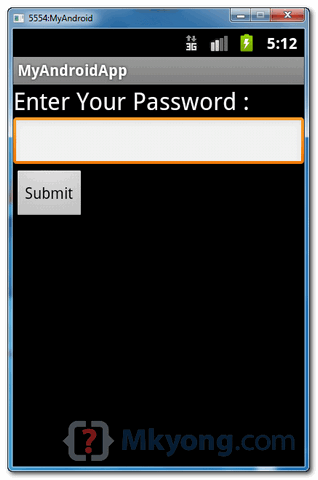
1. Result, password field is displayed.
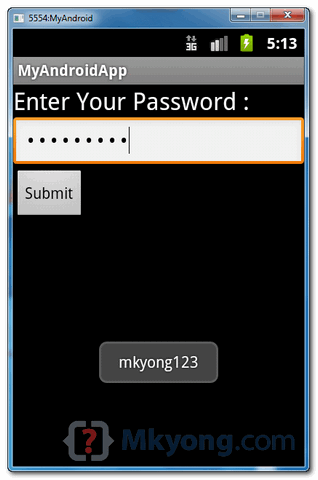
2. Type password “mkyong123” and click on the submit button.

Kindly Include “import yourpackagename.R;”
in source Java File
This is awesome
in this example I want to display password in next activity page. how to do that please somebody help me out.
how to execute it there is no exe file
input type = text password does not let to change language, how to make it to let choice? sorry for my english
package org.example.webviewdemo;

import android.app.Activity;
import android.os.Bundle;
import android.view.KeyEvent;
import android.view.View;
import android.view.View.OnClickListener;
import android.view.View.OnKeyListener;
import android.webkit.WebView;
import android.webkit.WebViewClient;
import android.widget.Button;
import android.widget.EditText;

public class WebViewDemo extends Activity {
	private WebView webView;
	private EditText urlField;
	private Button goButton;

    /** Called when the activity is first created. */
    @Override
    public void onCreate(Bundle savedInstanceState) {
        super.onCreate(savedInstanceState);
        setContentView(R.layout.main);

        // Create reference to UI elements
        webView  = (WebView) findViewById(R.id.webview_compontent);
        urlField = (EditText)findViewById(R.id.url);
        goButton = (Button)findViewById(R.id.go_button);

        // workaround so that the default browser doesn't take over
        webView.setWebViewClient(new MyWebViewClient());

        // Setup click listener
        goButton.setOnClickListener( new OnClickListener() {
        	public void onClick(View view) {
        		openURL();
        	}
        });

        // Setup key listener
        urlField.setOnKeyListener( new OnKeyListener() {
        	public boolean onKey(View view, int keyCode, KeyEvent event) {
        		if(keyCode==KeyEvent.KEYCODE_ENTER) {
        			openURL();
        			return true;
        		} else {
        			return false;
        		}
        	}
        });

    }

    /** Opens the URL in a browser */
    private void openURL() {
    	webView.loadUrl(urlField.getText().toString());
    	//webView.requestFocus();
    }

    private class MyWebViewClient extends WebViewClient {
        @Override
        public boolean shouldOverrideUrlLoading(WebView view, String url) {
            view.loadUrl(url);
            return true;
        }
    }
}